
Add Claude Desktop, with nothing to copy
Connect Claude Desktop from the Connection tab. Claude Desktop shows its own install screen, you click Install, and Claude can read your chart and work with it.
- Who it is for
- Claude Desktop users on a Mac or Windows computer, with Sky Connector or Sky Trade Desktop running.
- Time
- 3 min
- Steps
- 4 steps
Steps in this guide4 steps
Step 1: Open “Connect your AI app”
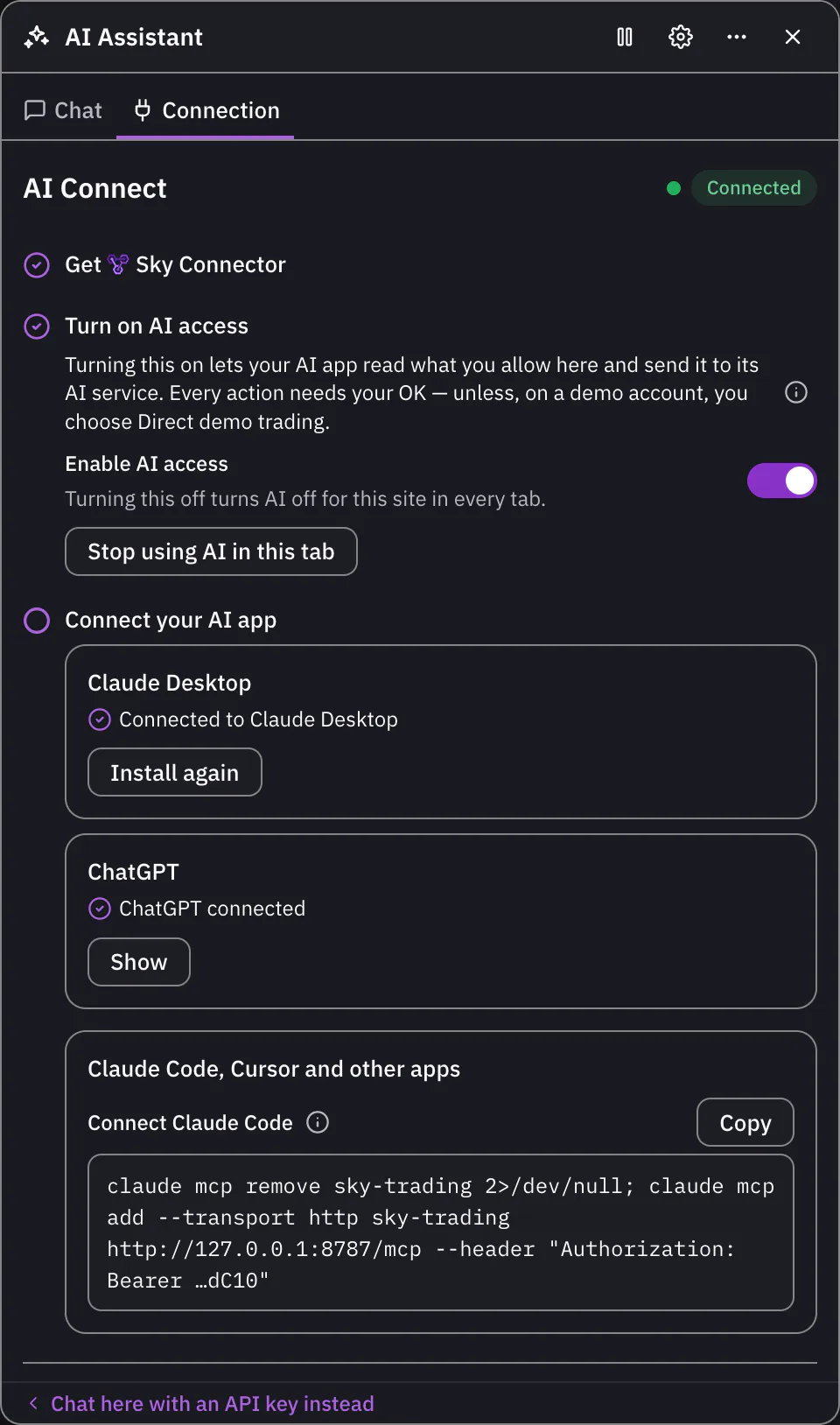
Open the AI Assistant, choose “Use your own AI app”, then open the Connection tab. Its steps show what is done and what is next. Once Sky Connector is running and “Enable AI access” is on, the last step, “Connect your AI app”, offers Claude Desktop first.
Step 2: Press “Add to Claude Desktop”
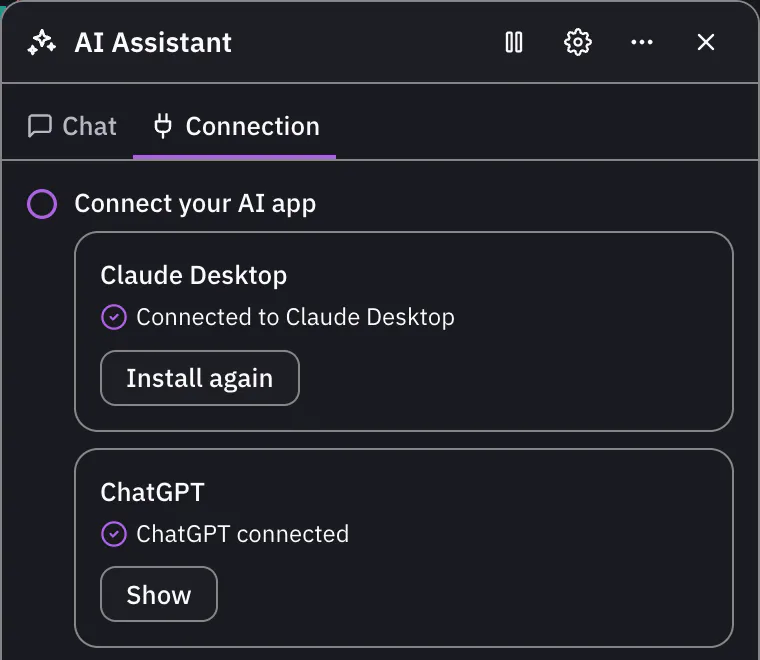
The first time in this browser, a short note explains what Claude Desktop is about to show you. Press “Open Claude Desktop” to go on. Claude Desktop then opens with the extension ready to install. Sky Connector’s menu offers “Add to Claude Desktop…” too, and in Sky Trade Desktop, “Add to Claude Desktop…” under AI pairing in the Help menu does the same.
Step 3: Click Install in Claude Desktop
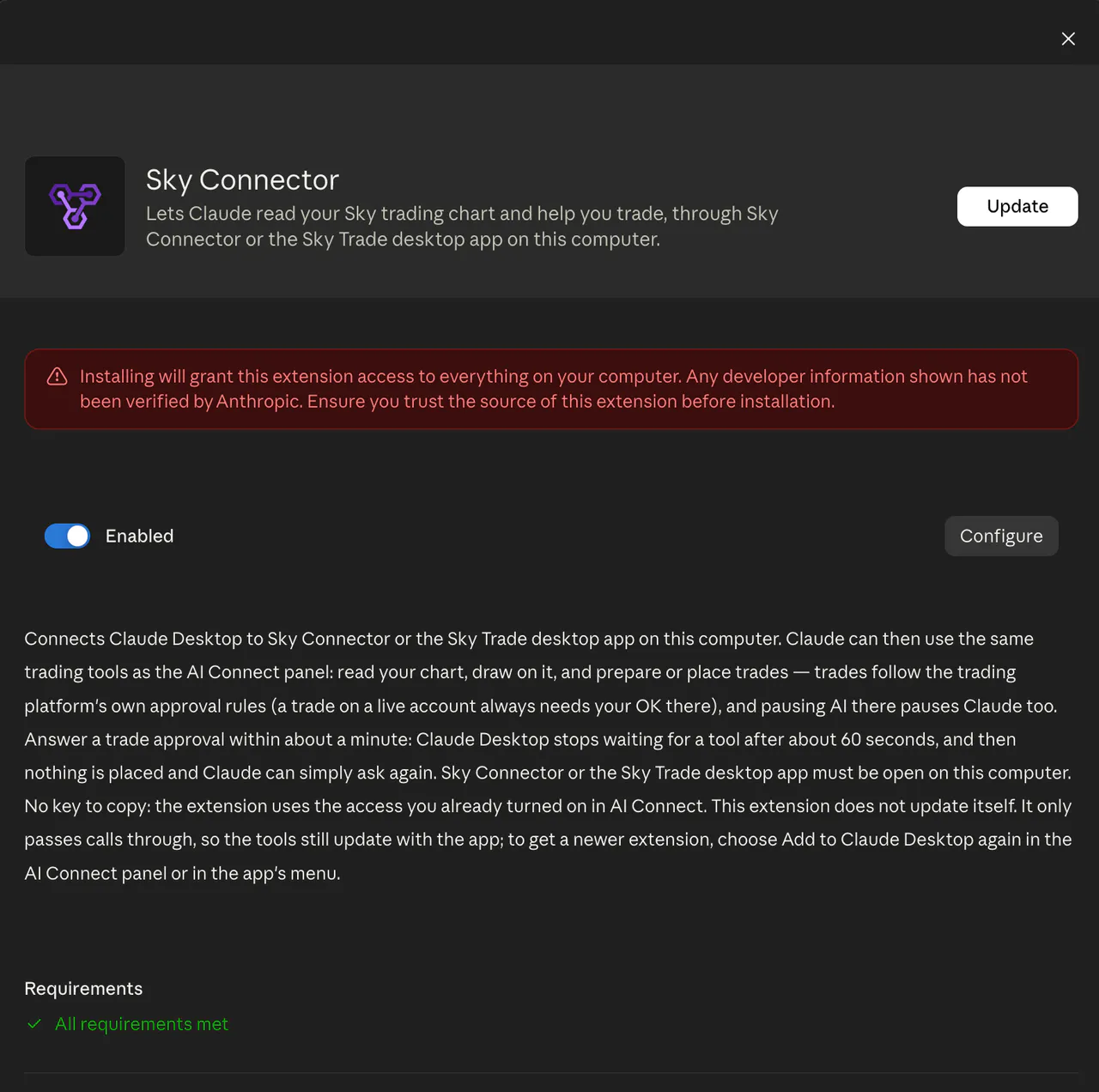
Claude Desktop shows its own install screen for the extension, named Sky Connector, with its standard notice for extensions you add yourself. Nothing is installed until you click Install. If the extension is already installed, the button reads Update instead. Back in Sky Trade, the row then says “Connected to Claude Desktop”.
Step 4: Ask Claude about your chart
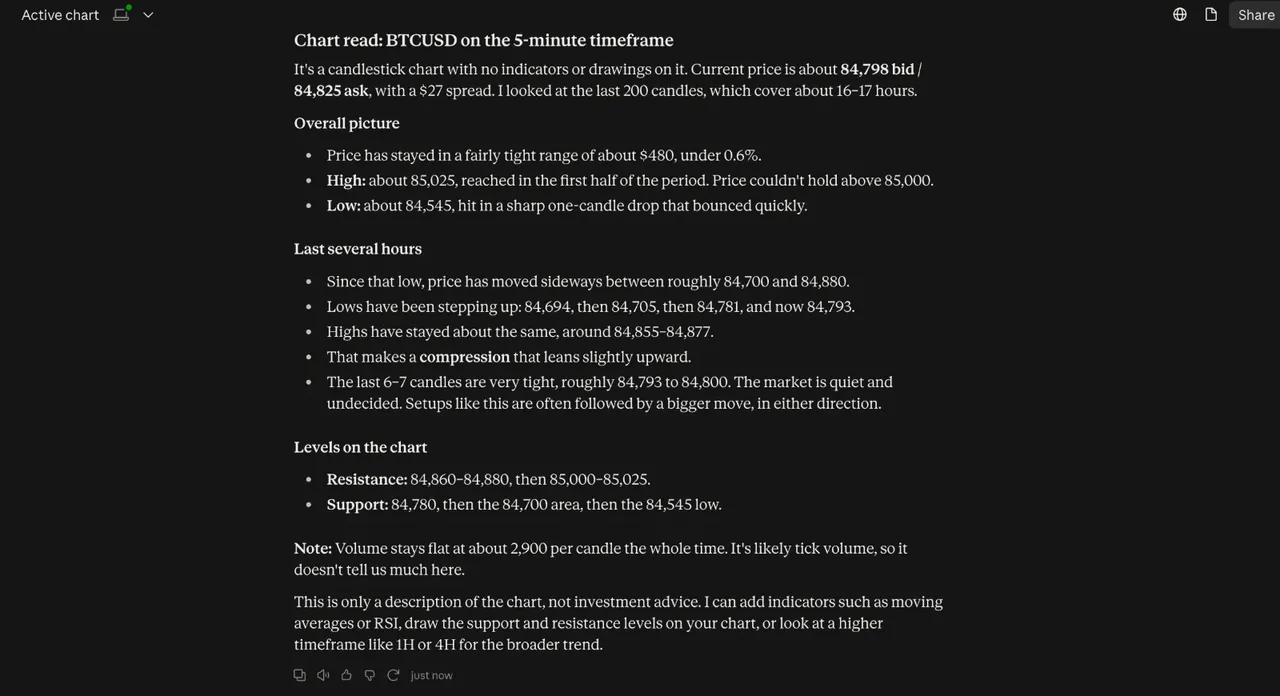
Start a new chat in Claude Desktop and ask about your chart, for example what is on it right now. Claude works with Sky Trade while Sky Connector, or Sky Trade Desktop, is open and AI access is on.


That is the whole guide
You have done every step. Pick what to learn next, or try it on the live chart.
Stuck?When your AI app won’t connect
Up next
- Beginner
Talk to your AI app from inside Sky Trade
Connected Claude Desktop, Claude Code or Cursor? Send it one start message, then chat with it in the Chat tab without leaving the trading screen.
3 min5 steps - Beginner
Stay in control of the AI
The AI stays in check: approval for every real trade, direct demo trading only where you choose it, pause switches, Streamer Mode and a record of what it did.
4 min6 steps - Beginner
Install Sky Connector
Link the AI app on your computer to Sky Trade in your browser: install Sky Connector, turn on AI access in the web app, and allow the pairing.
4 min4 steps