
Install Sky Connector
Link the AI app on your computer to Sky Trade in your browser: install Sky Connector, turn on AI access in the web app, and allow the pairing.
- Who it is for
- Web app users who want Claude Code, Cursor, ChatGPT or another AI app to work with their chart. With Sky Trade Desktop you don’t need it: the connection is built in.
- Time
- 4 min
- Steps
- 4 steps
Steps in this guide4 steps
Step 1: Download Sky Connector
On the Apps page of this site, press the download button for your computer: Mac, Windows or Linux. In the web app, the AI Assistant’s own “Download Sky Connector” button gets the right file too.
Step 2: Install and open it
Mac: open the .dmg file, drag Sky Connector into Applications and open it (click “Open” if macOS asks). Windows: run the installer; it is not signed yet, so if SmartScreen warns you, click “More info”, then “Run anyway”. Linux: make the AppImage executable, then open it; if it does not start, install FUSE from your system’s package manager. Sky Connector has no main window: it sits on a Mac in the menu bar, on Windows and Linux in the system tray (on Windows, look in the hidden icons next to the clock), plus a small status window on Linux. The first time, it tells you it is running.
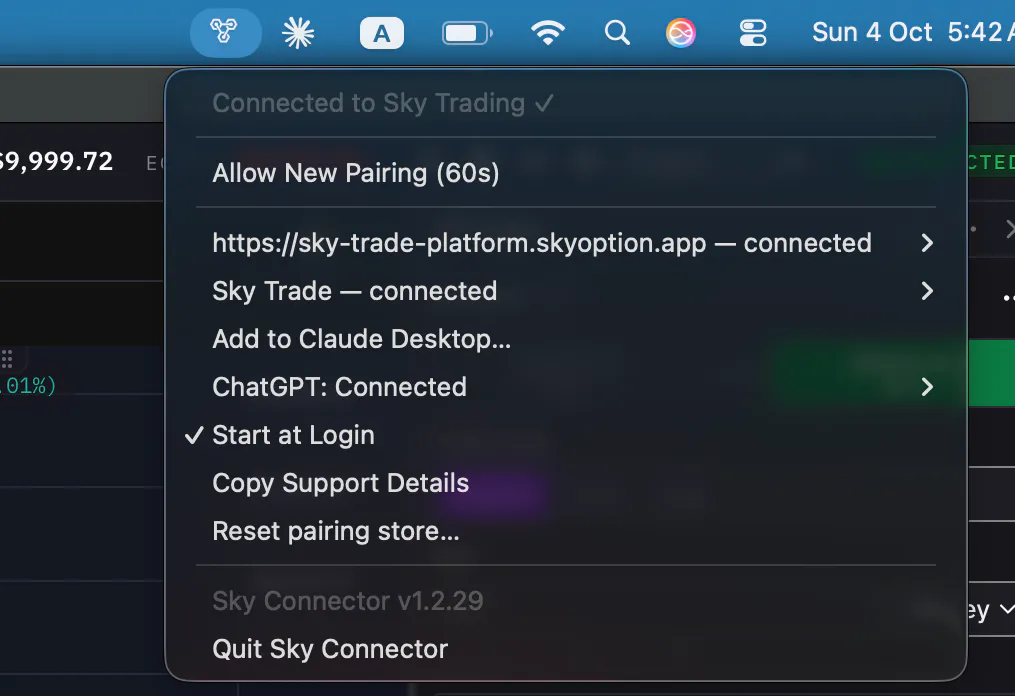
Step 3: In the web app, turn on Enable AI access
Open Sky Trade in your browser on the same computer and log in. Open the AI Assistant from its floating button in a bottom corner of the window, choose “Use your own AI app”, and turn on “Enable AI access”. If the page cannot reach Sky Connector, it tells you why and what to do next. Once Sky Connector has answered here, this browser remembers it: even with AI access off, the “Get Sky Connector” step then reads as done, with a small “Download again” link instead of the download button.
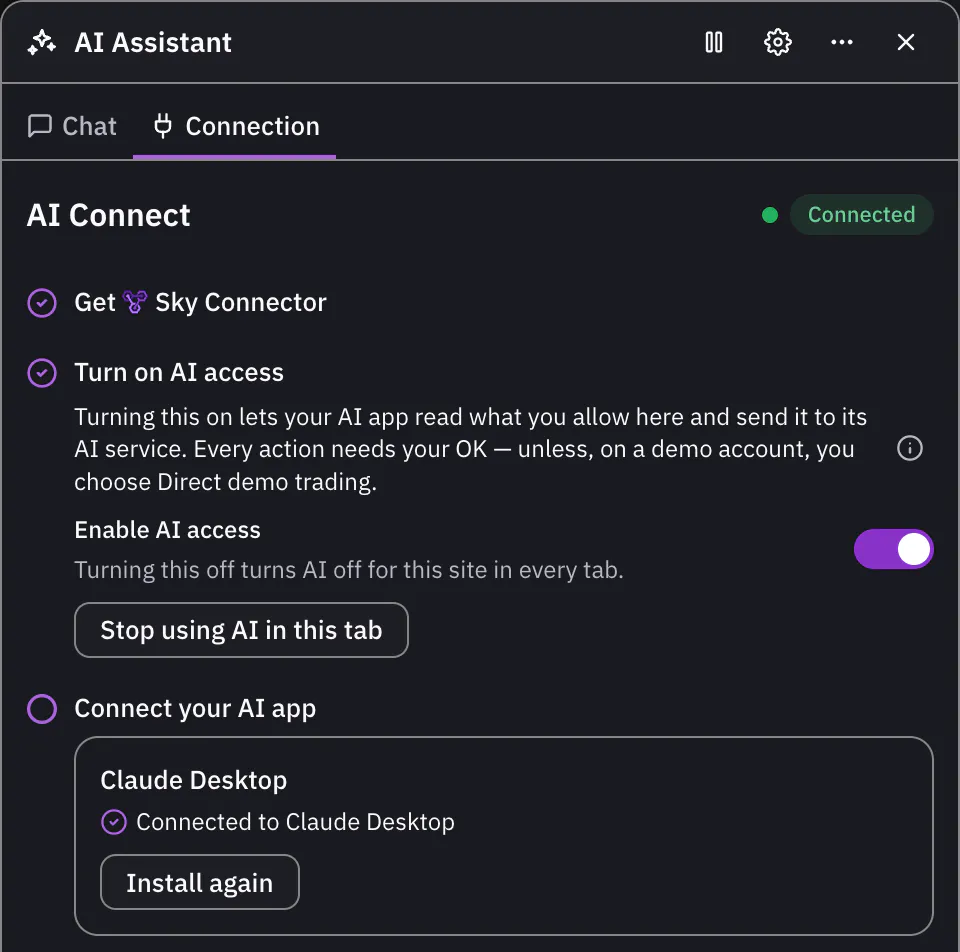
Step 4: Allow the pairing in Sky Connector
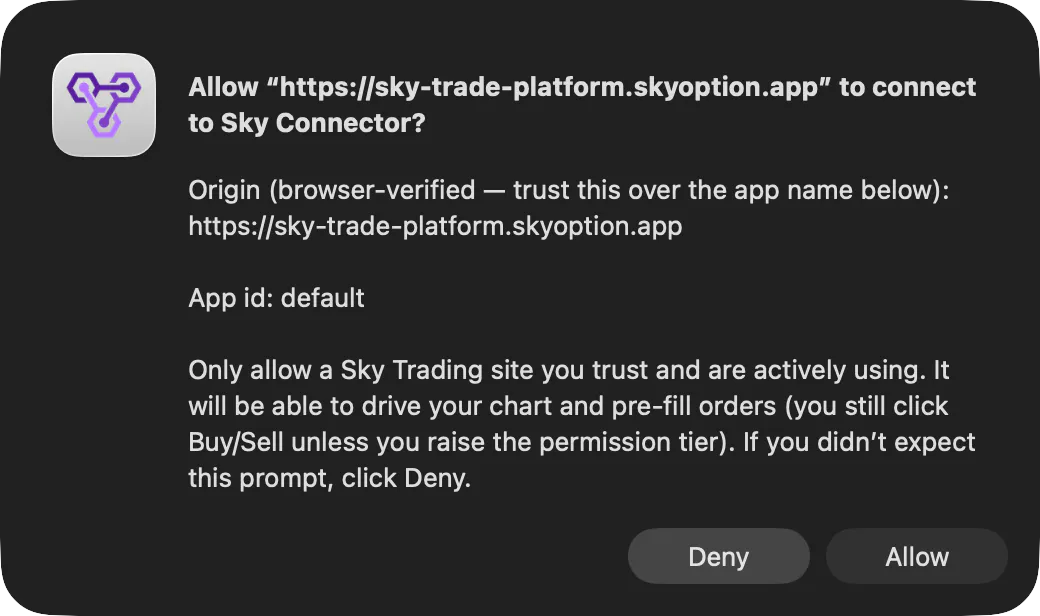
Sky Connector asks in its own window, for example “Allow … to connect to Sky Connector?”, with the site’s address in the question and again under “Origin”. Check that it is the Sky Trade address you have open, then click “Allow” with the mouse: “Deny” is the default button, so pressing Enter says no. Don’t see the window? It may be behind your browser: click Sky Connector’s notification, or the first line of its menu, which ends “click to answer”. Answer within a minute. If the panel then shows “Time to allow ran out”, press “Retry connection” and click “Allow” (or choose “Allow New Pairing (60s)” in Sky Connector’s menu first). Once connected, your AI app can join as the AI guides show; for ChatGPT, the panel offers a “Connect ChatGPT” button that opens Sky Connector’s ChatGPT window (with an older Sky Connector, a line that points to “Connect ChatGPT…” in its menu). Sky Connector’s menu and dialogs are in English; only its Connect ChatGPT window follows your system’s language.


That is the whole guide
You have done every step. Pick what to learn next, or try it on the live chart.
Stuck?When your AI app won’t connect
Up next
- Beginner
Add Claude Desktop, with nothing to copy
Connect Claude Desktop from the Connection tab. Claude Desktop shows its own install screen, you click Install, and Claude can read your chart and work with it.
3 min4 steps - Pro
Connect ChatGPT
Sky Connector or Sky Trade Desktop runs OpenAI’s secure tunnel for you. Press “Connect ChatGPT” in Sky Trade, paste two OpenAI Platform values, then add the connection in ChatGPT. No Terminal, on Mac, Windows and Linux.
5 min4 steps - Pro
Connect Claude Code
Paste one line from the Connection tab into a terminal. Claude Code then reads your chart and positions, draws levels and prefills an order you check and send.
3 min4 steps