
Trading
Trade with the numbers in front of you
Size a trade by the money you are ready to lose, see its margin and its cost before you send it, and manage it from the chart. Sky Trade checks the account and the connection before every order, and warns you louder as your margin gets tight.

- ways to size a trade, risk included
- 3
- modes for take profit and stop loss
- 5
- levels of margin warning
- 3
- order types
- 5
One ticket, built around risk
The order ticket works out the numbers, so you decide with them instead of guessing.
Now, or at your price
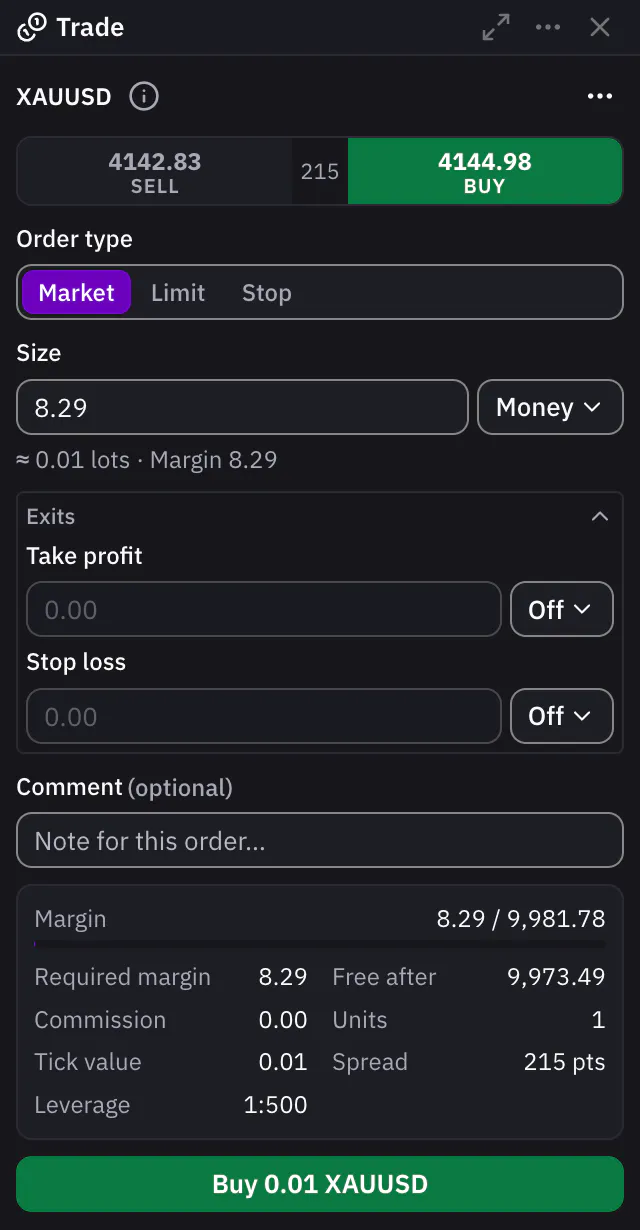
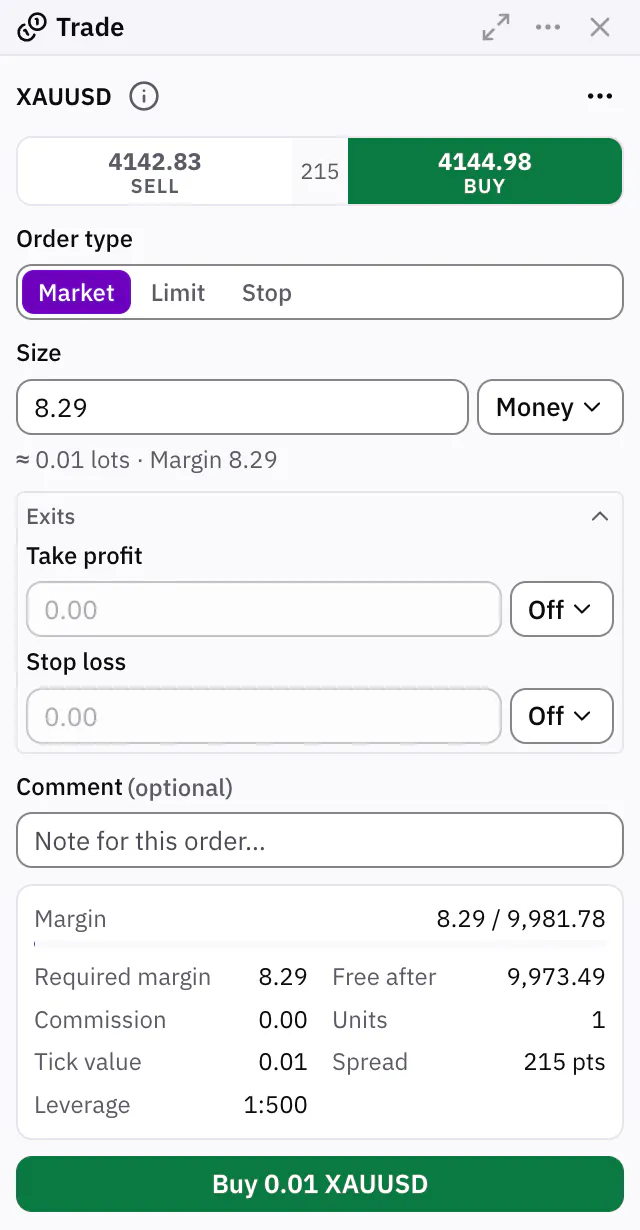
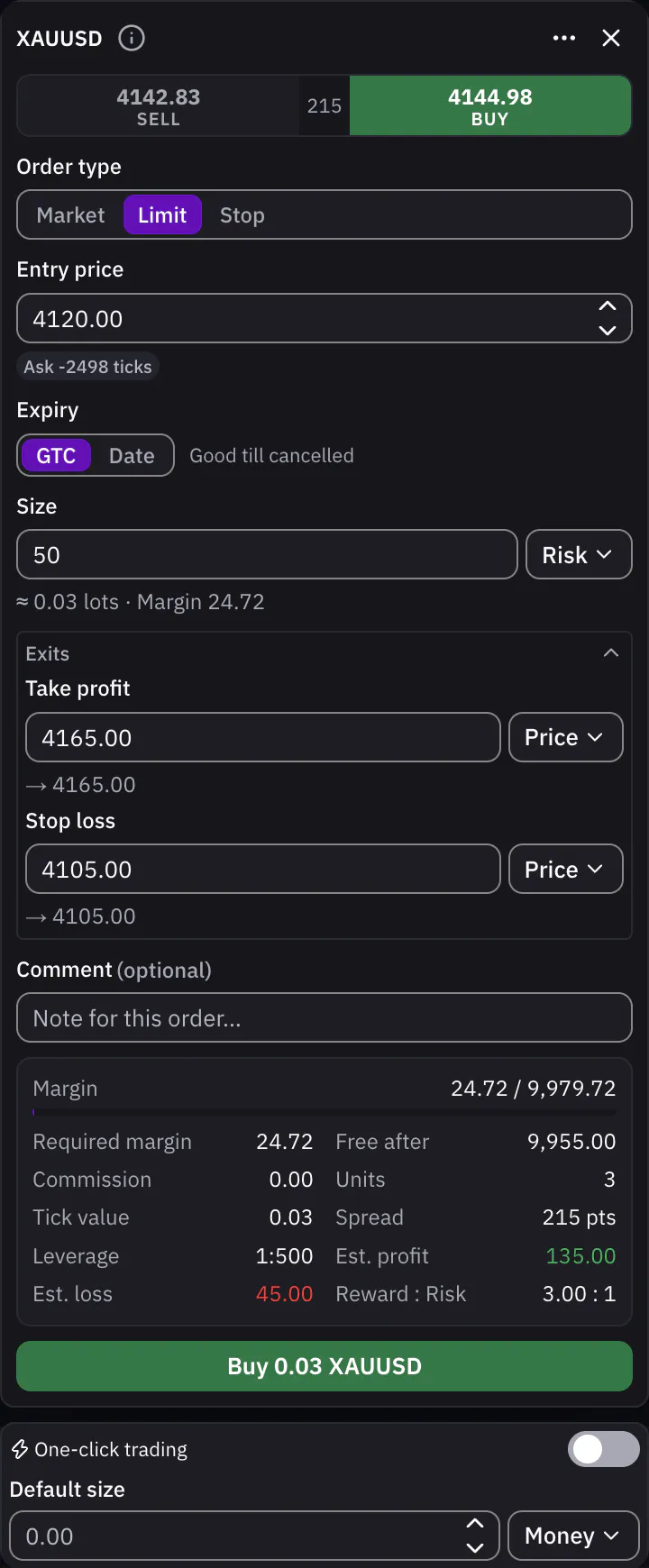
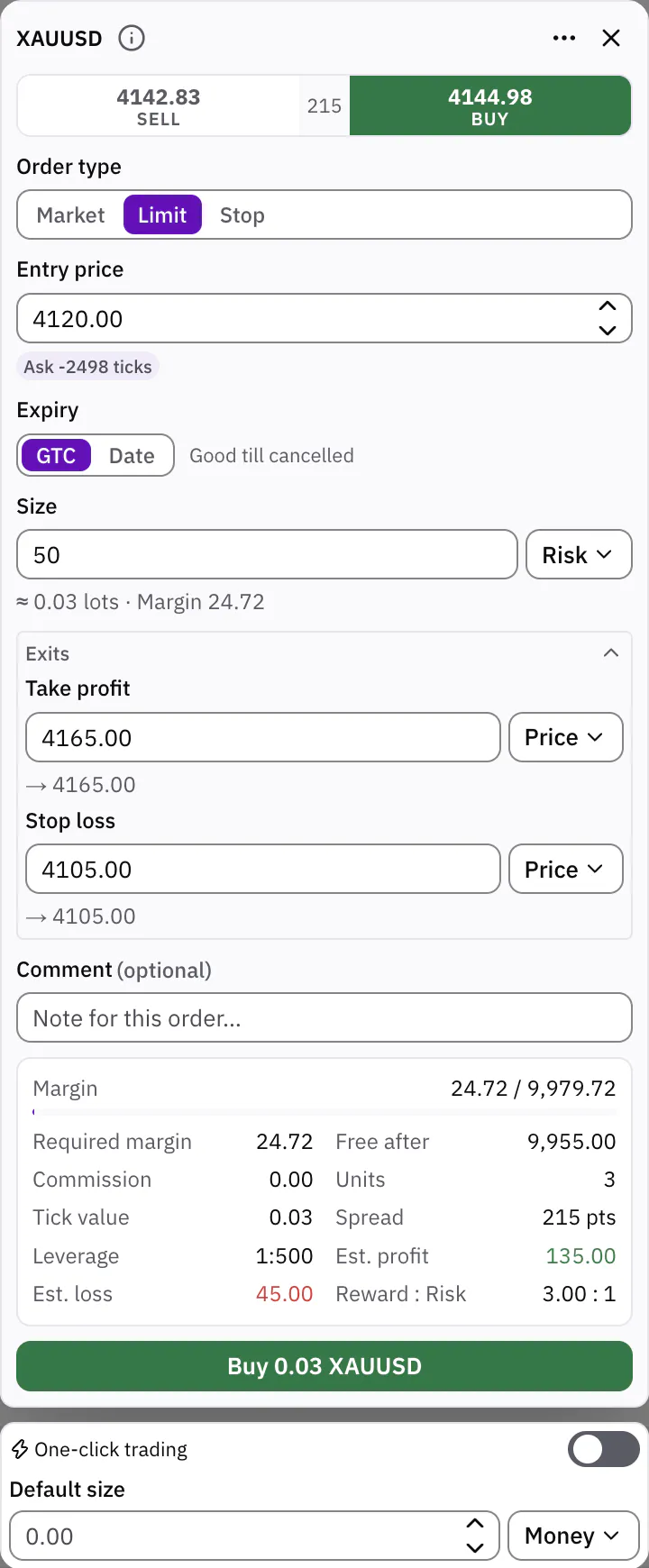
Buy or sell at the market, or wait for your price with a Buy Limit, Sell Limit, Buy Stop or Sell Stop. A pending order stays until you cancel it, or ends at the date and time you choose.
Size it by what you can lose
Enter the size as money, as lots, or as risk: say how much you are ready to lose, set the stop loss, and the ticket works out the lots. Switch between them and the value converts. Take profit and stop loss can each be off, or set as a price, in ticks, in percent or in money, and are checked against the symbol’s stop level and tick size.
Plan it on the chart first
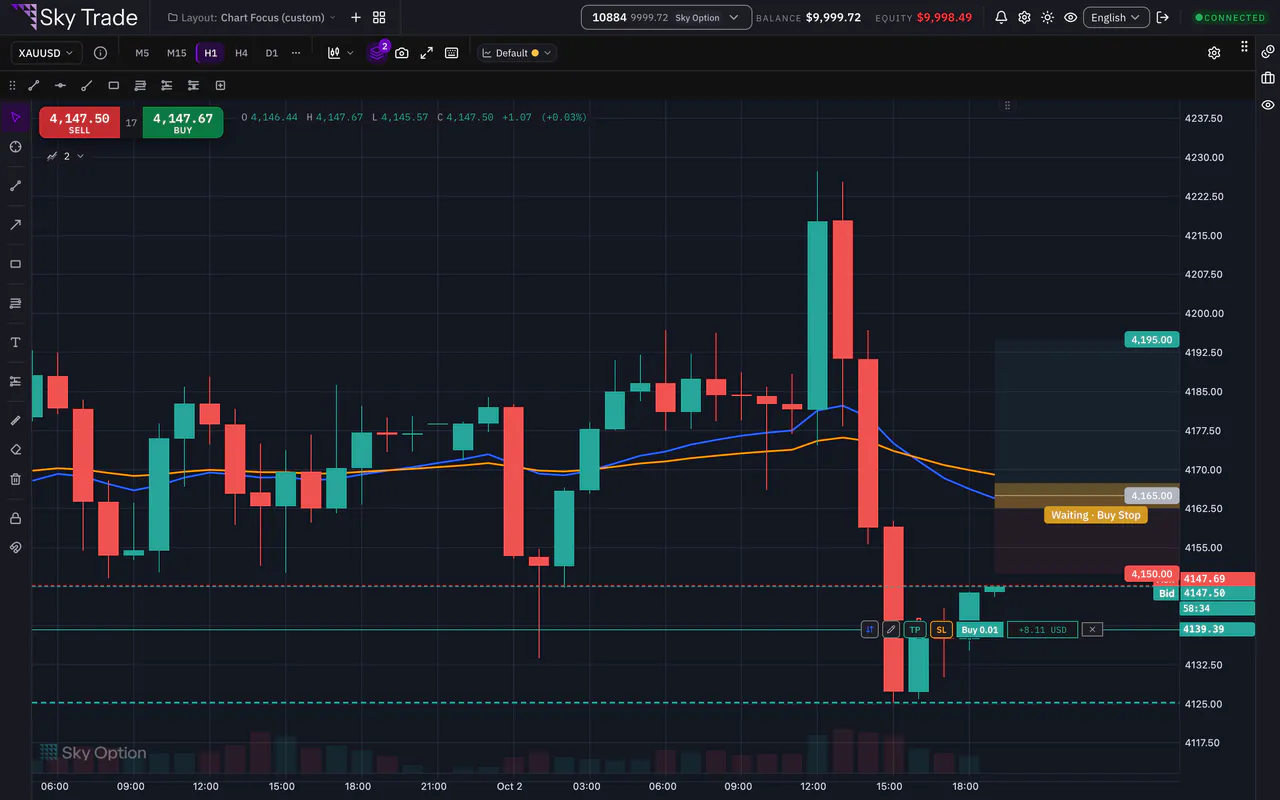
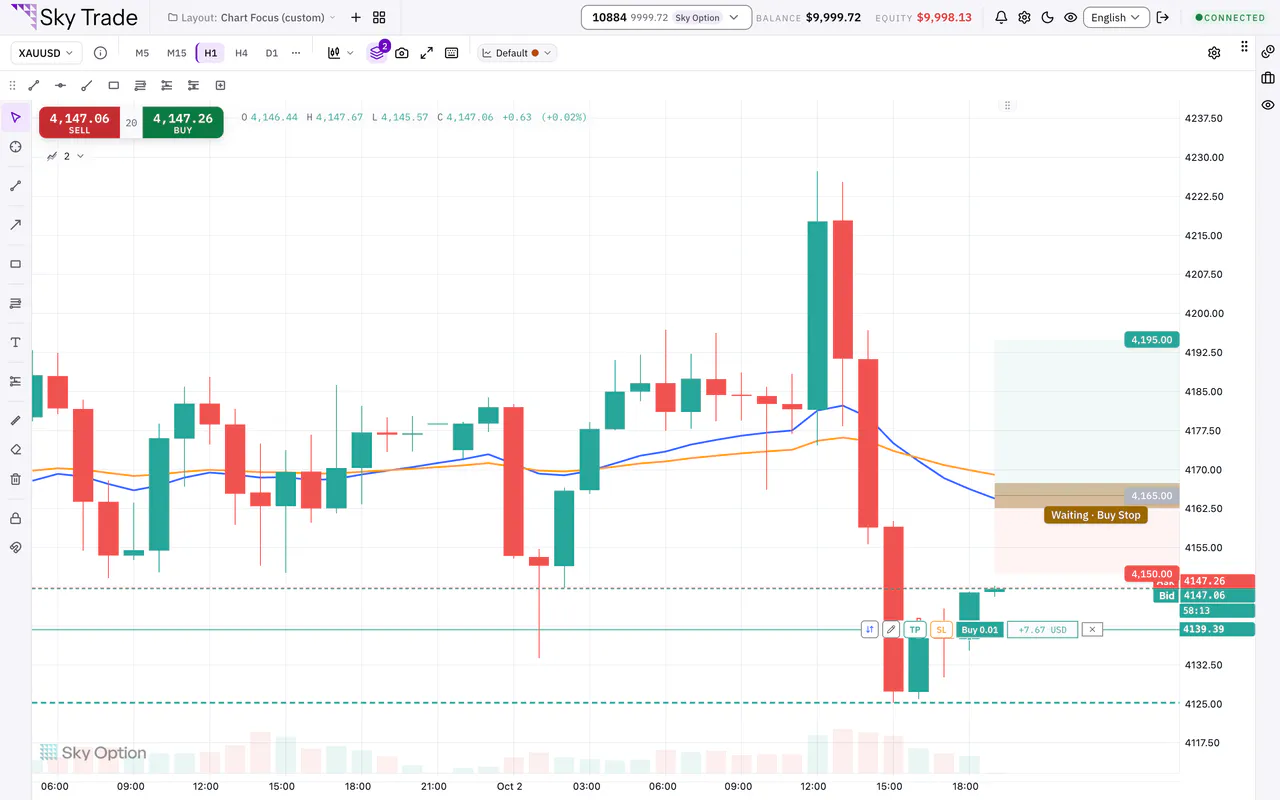
Draw a long or short position on the chart and it is sized from your real balance and leverage, with the margin it needs and whether you can afford it. Move its target and stop, or flip it, before any order exists.


Protection when margin gets tight
The closer your margin gets to a stop-out, the louder Sky Trade warns you, and each warning comes with the buttons to act on it.
Warnings that grow with the risk
Your margin level is checked on every price change, with 3 levels of warning.
Margin call
A strip under the header tells you your margin level has reached your broker’s margin-call level. You can dismiss it.
Margin critical
Closer to a stop-out, a warning pops up over the screen with Close losers and Close all, so you can free margin in one press.
Stop-out
If the stop-out level is reached, a full-screen notice tells you the broker is closing positions. Dismiss it to a small badge in the corner.


On a phone, the margin-call banner stays above the AI chat, without covering the chat’s Close button.
Guards against the wrong order
No order on a stale price
When the connection is not healthy, the ticket refuses to send, instead of trading on an old price.
The right account, checked again
The account is checked once more just before an order leaves. Switch accounts while a confirmation is open and it is withdrawn; a bulk close in progress stops and sends nothing more.
Confirmations that default to safe
Closing a position asks first from the start, and asking before every order you place from the ticket is one switch away. In a confirmation, Cancel has the focus, so the safe choice is the default one.
Practice never sends a live order
While a chart replays in Trading Lab, the live money controls for that chart are locked.
Every event in one list
A bell in the header keeps margin warnings, fills, rejections and pending order events, with a count of the ones you have not read.
Always know if prices are live
A status pill shows whether you are live, reconnecting or offline. Sky Trade reconnects by itself, and offers Sign in again after a long outage.
Around every order
See the cost before you send it, trade from the chart, and manage or edit a trade once it is open.
Manage it where you see it
Open trades sit on the chart as lines with live profit and loss, and pending orders as lines at their price. Drag a take profit or stop loss and see the result in money before you confirm, close or reverse a trade from its line, and drag a pending order to a new price.
A symbol’s terms, one click away
Open a symbol’s card to check its contract size, lot limits, minimum stop distance, leverage cap, commission and swap before you trade it.
Buy and Sell on the chart
The chart carries Buy and Sell buttons with the live bid, ask and spread. A press opens the ticket already filled in.
The cost, before you click
A live summary shows the lots, the margin the order needs, your free margin after it and the commission, with the profit or loss at your take profit and stop loss and their reward to risk. Each problem is named in plain words, beside the name of the field it concerns.
One-click trading, only if you want it
It is off when you start. Turn it on, and Buy or Sell on the chart sends a market order at your default size straight away.
Docked or floating
Keep the ticket in its panel or let it open over the chart. When its panel is narrow, it switches to a compact layout.
Edit an open trade in the same ticket
Change the take profit or stop loss of an open position in the ticket you already know.
Every trade in one place
Open trades, waiting orders, what you closed and how your account stands, each in its own panel.
Open trades, your columns
Sort by symbol, side, volume, entry or profit, and choose which of the 13 columns to show. Sky Trade remembers your choice.
- Close a trade from its row, or edit its take profit and stop loss in the same ticket you open trades with.
- Close all, only the buys, only the sells, only the losers or only the winners in one action. You confirm first, can stop it midway, and are told if any did not close.
- Switch to the summary view for one card per symbol: net volume, buys against sells, and a close menu.


Waiting orders you can still change
Change a pending order’s price, volume, stop loss, take profit or expiry right in its row, without entering it again.
- Delete one order, or several at once.
- Each order shows the date it expires, or that it stays until you cancel it.
See how you really did
Pick a period from today to the past year, one of 6 ranges, filter by symbol and sort by date, profit or number. Totals, win rate and profit factor sit above the table.
- Closed positions, pending order history and a log of account actions, each in its own tab.
- Export to a CSV file that opens correctly in Excel, Arabic included.
- Share one trade, or your week or month, as an image sized for a post, a story or a wide image, in English or Arabic.


Your account’s health at a glance
Equity, balance, floating profit and loss, used and free margin, margin level and leverage, with your broker’s margin-call and stop-out levels beside them. Equity, free margin and margin level follow every price change.
- The header keeps your balance and equity in view, the equity tinted by your open profit or loss.
- Money shows in your account currency’s own decimals: whole yen on a JPY account, three decimals on a KWD account.


Read your trading, not only your results
History has a Summary view that turns your closed trades into plain answers: are you growing, what does a trade earn on average, and which habits cost you money.


Real growth
Your return from trading alone. Money you deposit never counts as growth, and each deposit or withdrawal is weighed by how long it was in the account. Beside it: the number of trades, the largest drawdown and the profit you can expect per trade.
Profit curve
Your running net profit, trade by trade, with the largest drawdown shaded and deposits and withdrawals marked on the time line.
Key numbers, explained
Average win and loss, your strongest and weakest trade, the longest winning and losing streaks and the average hold time, each with a note on what it means.
By symbol
Net result, trades, win rate and profit factor for each symbol, with its buy and sell sides. Find the symbols that pay you and the ones that cost you.
Habit check
Do you hold losers longer than winners? How many trades had no stop loss, and what did they make? What did commission and swap take, and how did your trades close?
Profit by day closed
Net profit by the day your trades closed, month by month. Press a day to see its trades in the table.
Your days and hours
Net profit by the weekday and by the hour a trade was opened, so you learn when you trade well and when you do not. Hover or tap a bar, or use the arrow keys, to read its net profit and how many trades it holds.
Where trades came from
Closed trades split by where they were opened, for example by the AI or on a phone, so you can compare them.
Deposits and withdrawals in History
Money in and out sits in the same timeline as your trades, with its own totals, and goes into the CSV export.
Columns on every table
Pending orders and every History tab get a Columns menu like Positions, and each table keeps your choice.
History that keeps up
When a trade opens or closes, or a pending order fills or is cancelled, History refreshes itself.
Watchlists for every plan
Keep a list per strategy, session or market, and switch between them in one menu.
- Create, rename, switch and delete lists. The last list always stays.
- Each row shows the bid, the ask and the spread in points, beside the symbol’s logo.
- A price tick shows as a colour and an arrow, and a screen reader says up or down.
- Add symbols from a search grouped by sector.
- Click a symbol and it opens on the chart you are working on.
Each row also has the symbol’s info card, with its trading terms.


The full platform on your phone
Open Sky Trade in your phone’s browser. The chart fills the screen and every other panel waits in a sheet at the bottom, with nothing to install.
- The sheet rests as a slim strip with the symbol’s bid and ask, or opens to half or full height.
- Trade from the same order ticket, inside the sheet.
- Reorder the sheet’s tabs, or hide the ones you do not use.
- Larger touch targets, your phone’s own pickers, and a header that fits the width.


Hear what happens
Switch on Execution sound in the trading settings and Sky Trade plays a short cue for each moment that matters, made in the browser with no files to load. It stays off until you turn it on.
Order filled
A short chime when an order executes.
Margin call
A pulsing warning when your margin reaches the margin-call level.
Stop-out
An urgent alarm when the stop-out level is reached.
Price alert
A two-note bell when one of your price alerts fires.
Place your first trade on a demo account
Try the live chart on this site, or open a free demo account and trade with virtual money, using the same ticket.