
When your AI app won’t connect
The Connection tab names every problem in a short badge. Find the words you see, and do the one thing that fixes it.
- Who it is for
- Anyone whose Connection tab, Chat tab or ChatGPT window shows a problem.
- Time
- 5 min
- Steps
- 17 steps
Steps in this guide17 steps
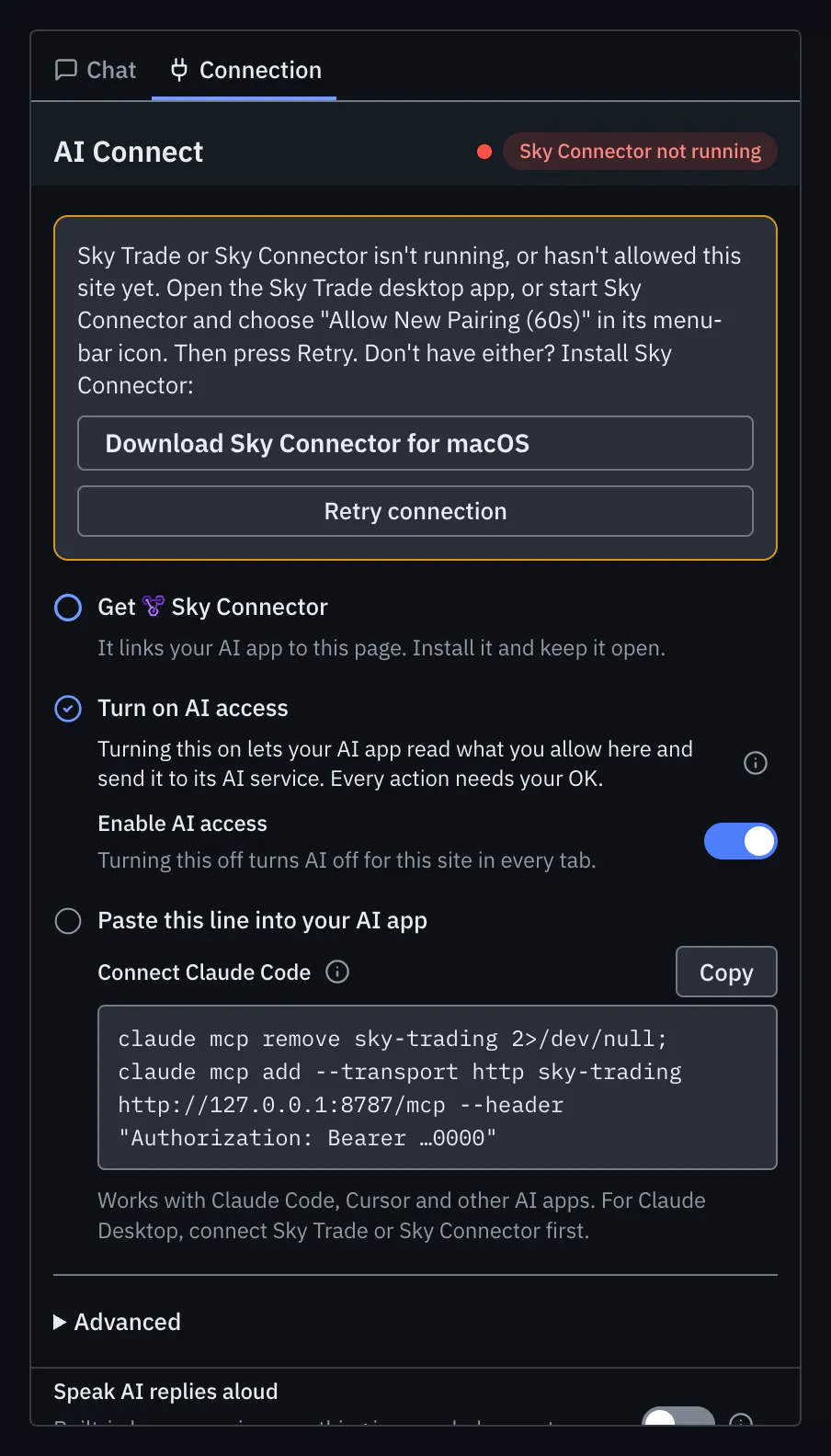
Step 1: Sky Connector not running
Start Sky Connector the way you open any app on your computer. Its icon then sits in the menu bar on a Mac, and in the system tray on Windows and Linux. Or open Sky Trade Desktop, which serves the same connection. If Sky Connector has never allowed this site, choose “Allow New Pairing (60s)” in its menu. Then press “Retry connection”.
Step 2: Browser permission needed
Your browser asks before this site can reach Sky Connector. Press “Connect”, then choose “Allow” in your browser’s question.
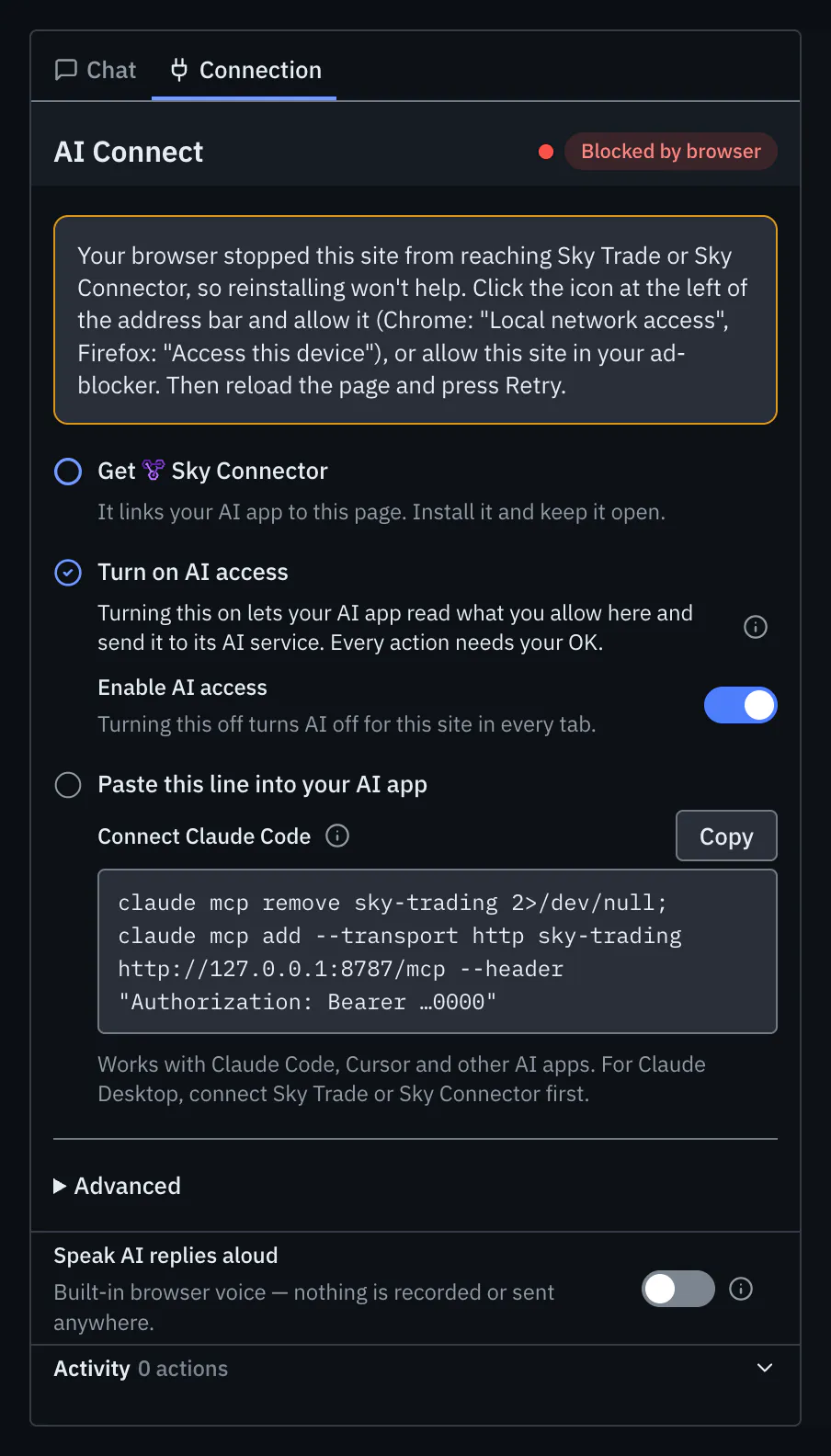
Step 3: Blocked by browser
Your browser stopped this site from reaching Sky Connector, so reinstalling won’t help. Click the icon at the start of the address bar and allow it (Chrome calls it “Local network access”, Firefox “Access this device”), or allow this site in your ad-blocker. Then reload the page. If “Retry connection” shows on the card, press it as well.
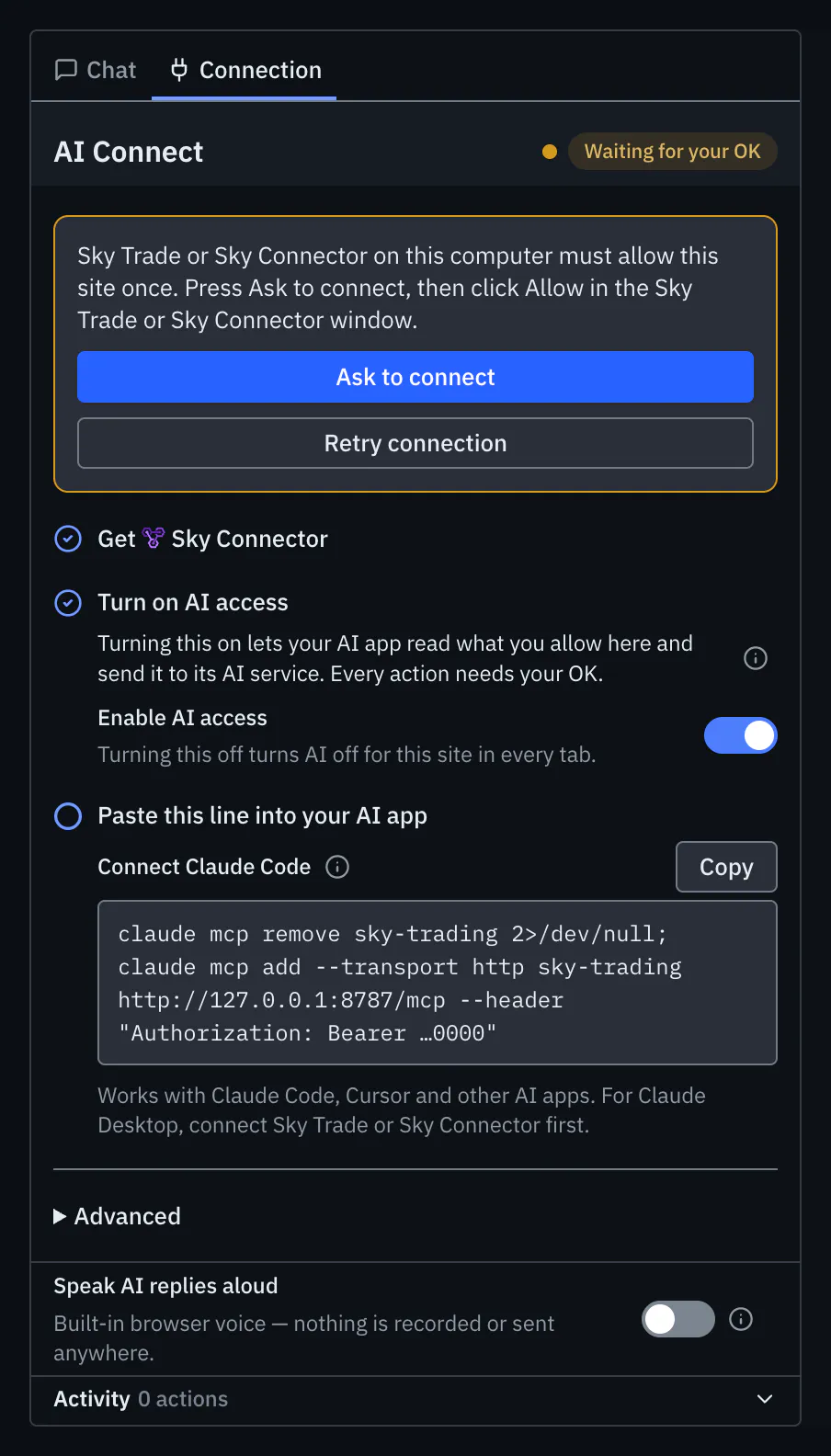
Step 4: Waiting for your OK
Sky Connector must allow this site once. Press “Ask to connect”, then click “Allow” in the Sky Connector window. If you can’t see the window, click Sky Connector’s notification, or the first line of its menu.
Step 5: Another connection request is waiting on this computer
Answer that request first: look for the Sky Connector window and choose “Allow” or “Deny” there, then press “Ask to connect” again.
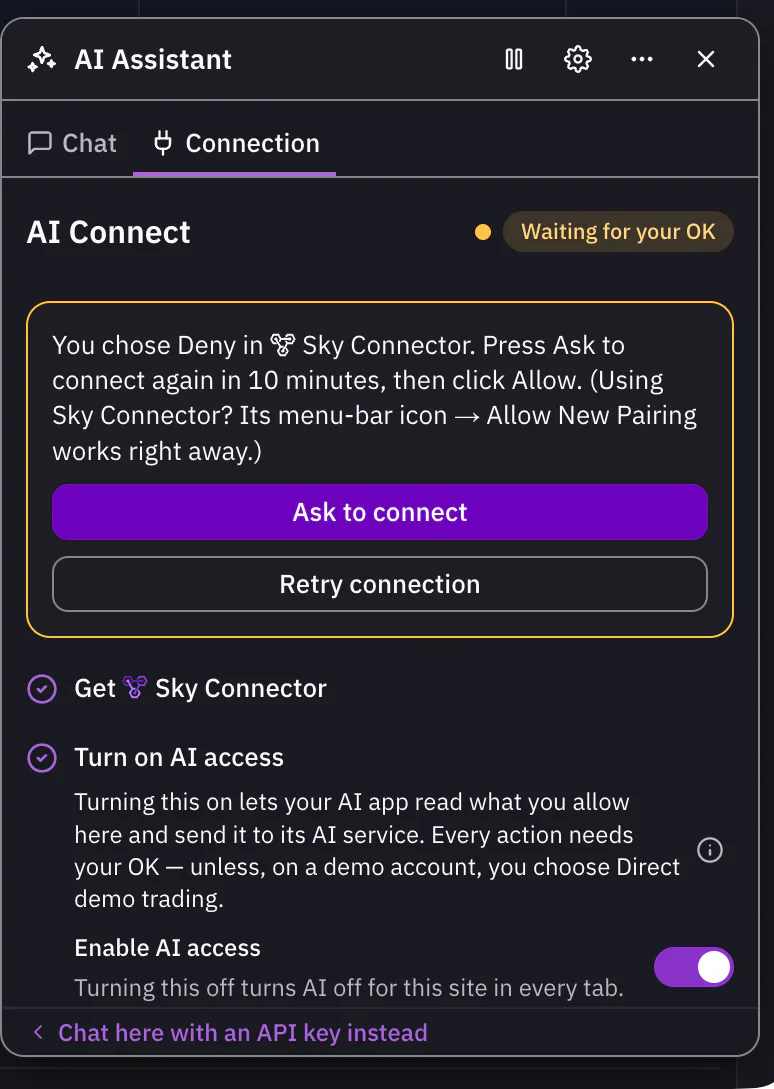
Step 6: Connection denied, or Time to allow ran out
Someone clicked “Deny”, or nobody clicked “Allow” in time. After a Deny, Sky Connector ignores this site for ten minutes. To allow it now, choose “Allow New Pairing (60s)” in Sky Connector’s menu, then press “Retry connection” and click “Allow” within a minute.
Step 7: Sky Connector is out of date
Update it, then press “Retry connection”. Sky Connector updates itself: when an update is ready, its menu shows “Update ready — restart to apply”. You can also download the latest version from the Apps page.
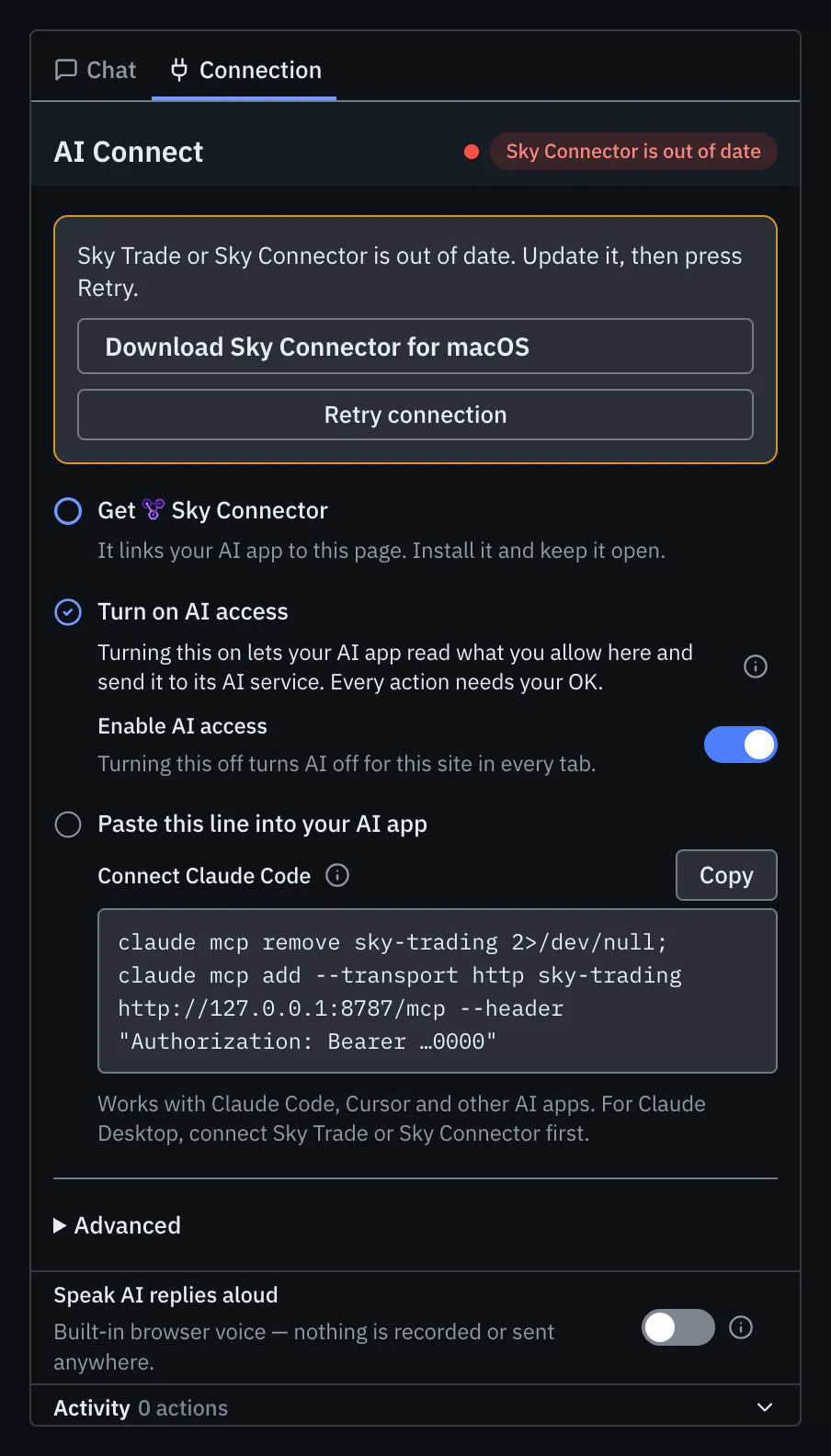
Step 8: Connected in another tab
Only one tab of this site holds the AI connection. Use that tab, or press “Take over connection from the other tab”.
Step 9: Not used in this tab
This tab let the AI connection go, so another tab of this site can use it. To use AI here again, press “Use AI here”.
Step 10: Another website, or the Sky Trade desktop app, is using the AI connection
Only one website can use it at a time. Press “Use it here instead”, then click “Allow” in the Sky Connector window. The other website is disconnected.
Step 11: Connected · paused in Sky Connector
AI for this site is paused in Sky Connector. In Sky Connector’s menu, open this site’s line and choose “Resume AI for this app”.
Step 12: Token mismatch
Sky Connector holds a different access token for this site. Press “Retry connection”, then choose “Allow” in Sky Connector. If it doesn’t ask, make sure Sky Connector is running.
Step 13: Claude Desktop isn’t installed on this computer
The Claude Desktop row says so when it can’t find the app. Press “Get Claude Desktop”, install it, then press “Add to Claude Desktop” again. Claude Desktop is available for Mac and Windows.
Step 14: The ChatGPT window shows a problem
Each problem has one line and its next step. “This API key can’t use tunnels”: give the key the Tunnels permission (Read and Use). “OpenAI can’t find this tunnel”: check the tunnel ID; the tunnel and the key must be in the same organization. “Turn on AI access in Sky Trade”: turn on “Enable AI access”, and ChatGPT connects by itself after that.
Step 15: The ChatGPT card says “ChatGPT is off” or “Needs attention”
Press “Show” on the card: the ChatGPT window of Sky Connector or Sky Trade Desktop opens and says what to do. “ChatGPT is off”: choose “Start” there. “Connecting…” and “Reconnecting…” need nothing from you: the app keeps trying, so check your internet connection if it stays that way.
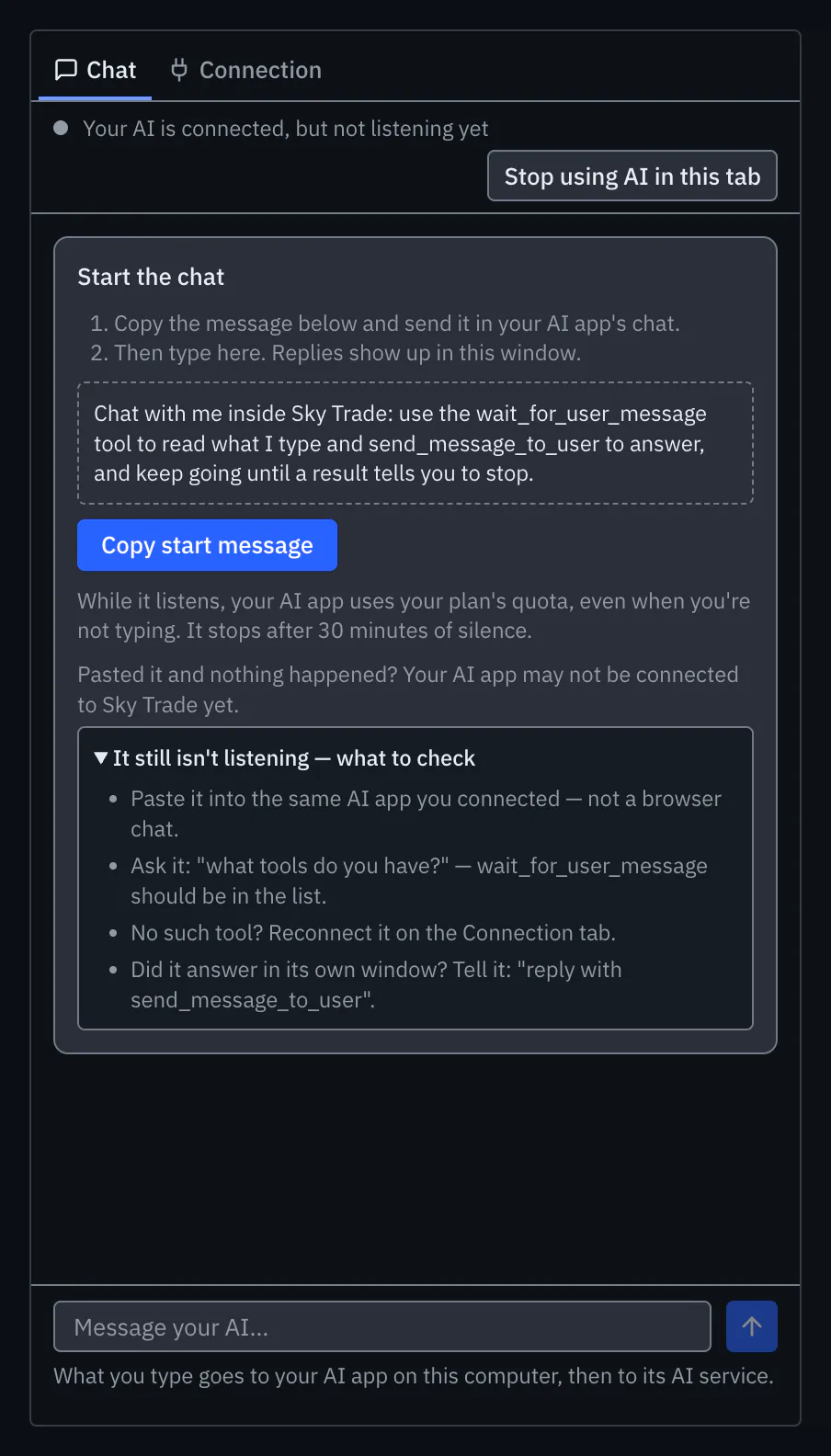
Step 16: Pasted the start message and nothing happened
In the Chat tab, open “It still isn’t listening — what to check”. Check that you pasted it into the same AI app you connected, not a browser chat. Ask it “what tools do you have?”: the tool the Chat tab names should be in the list. If it is missing, reconnect your app on the Connection tab.
Step 17: After you press Regenerate
AI apps using the old access token lose access. The Claude Desktop extension reconnects by itself. Paste the new “Connect Claude Code” line again, and put the new token into Cursor or Windsurf. In the web app, press “Retry connection” too, then choose “Allow” in Sky Connector.


That is the whole guide
You have done every step. Pick what to learn next, or try it on the live chart.
Up next
- Beginner
Install Sky Connector
Link the AI app on your computer to Sky Trade in your browser: install Sky Connector, turn on AI access in the web app, and allow the pairing.
4 min4 steps - Beginner
Add Claude Desktop, with nothing to copy
Connect Claude Desktop from the Connection tab. Claude Desktop shows its own install screen, you click Install, and Claude can read your chart and work with it.
3 min4 steps - Beginner
Stay in control of the AI
The AI stays in check: approval for every real trade, direct demo trading only where you choose it, pause switches, Streamer Mode and a record of what it did.
4 min6 steps