
Stay in control of the AI
The AI stays in check: approval for every real trade, direct demo trading only where you choose it, pause switches, Streamer Mode and a record of what it did.
- Who it is for
- Every trader who uses the AI chat or connects an AI app.
- Time
- 4 min
- Steps
- 6 steps
Steps in this guide6 steps
Step 1: Approve or Deny each trade request
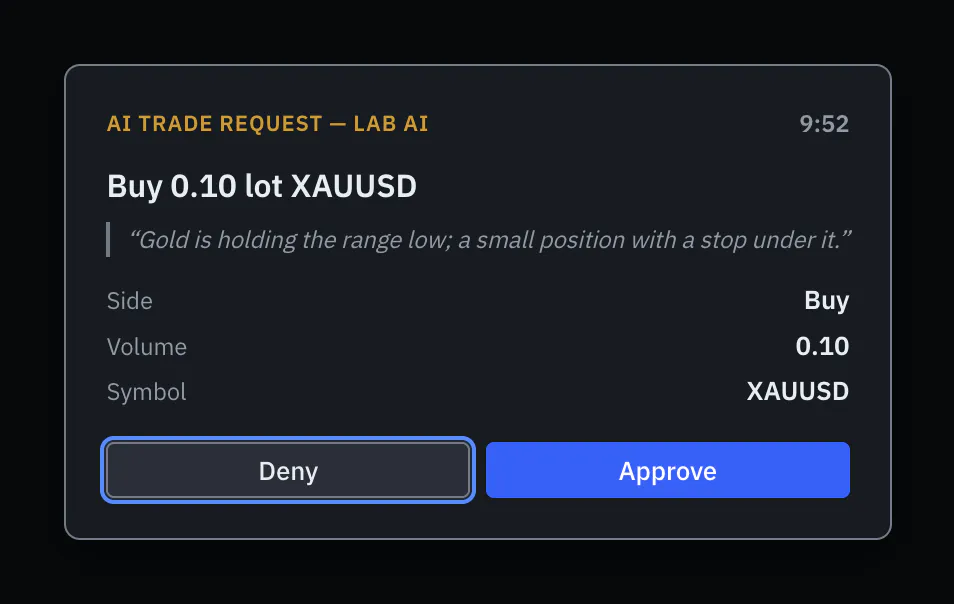
When the AI asks to open, close or change a trade, or to cancel a pending order, an “AI trade request” dialog shows what it wants and its reason in its own words. Press Approve to go ahead or Deny to refuse. Deny has the focus, so a hasty key press says no, and a countdown ends the request if you do nothing. The order is checked again after you approve.
Step 2: Direct demo trading: only where you choose it
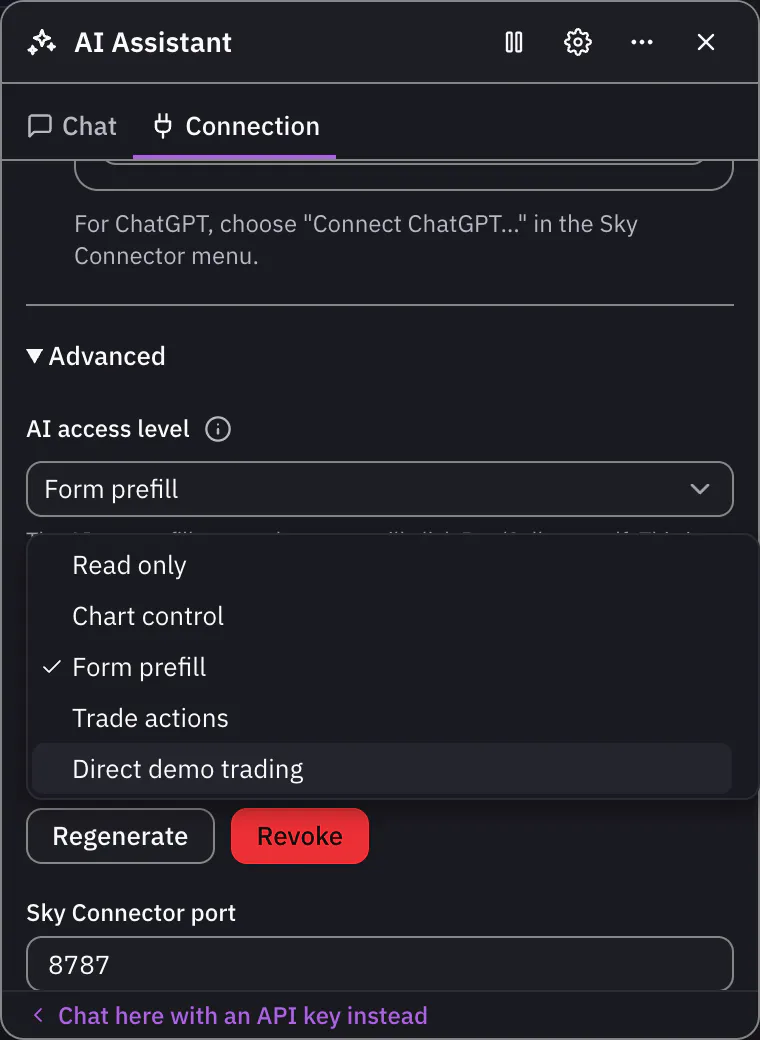
On a demo account, the AI access level can also offer Direct demo trading. Choose it and the AI opens, closes and changes trades on that demo account without asking you. It works only on the demo account you chose it for, a “Direct demo trading on” badge shows while it is on, and it is never offered on a real account. Choose another level to require your approval again.
Step 3: Pause the AI
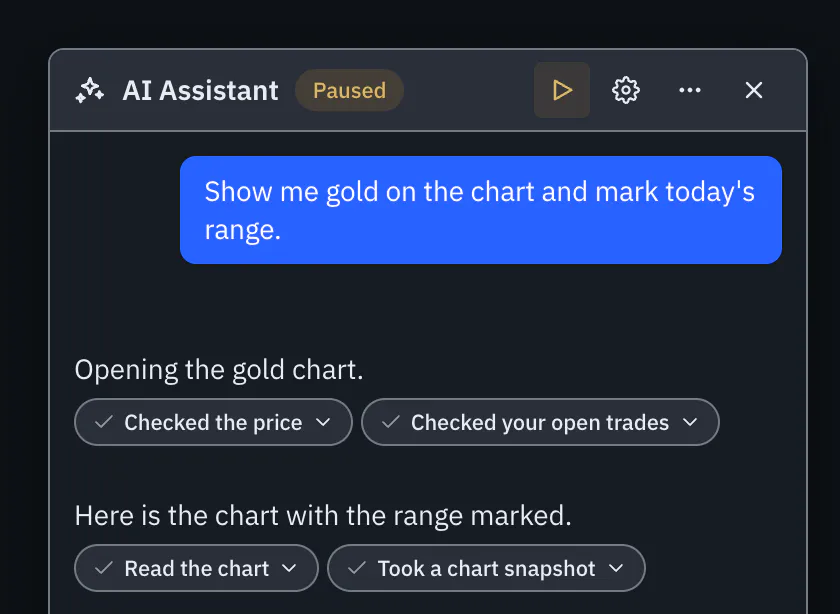
There are two pauses: one for the chat with your key, one for your connected AI app. Pause AI in the AI Assistant’s header pauses the AI you are using on that screen: the chat with your key, or your connected AI app. The connected app’s pause is also on the Connection tab, under Advanced, as “Pause AI access on this site”. Either way, a request still waiting for your approval is cancelled. In Sky Connector’s menu, “Pause AI for this app” pauses AI for the trading site on that computer, and “Revoke pairing” cuts the site off. Signing out signs the AI out too.
Step 4: Turn on Streamer Mode before you stream
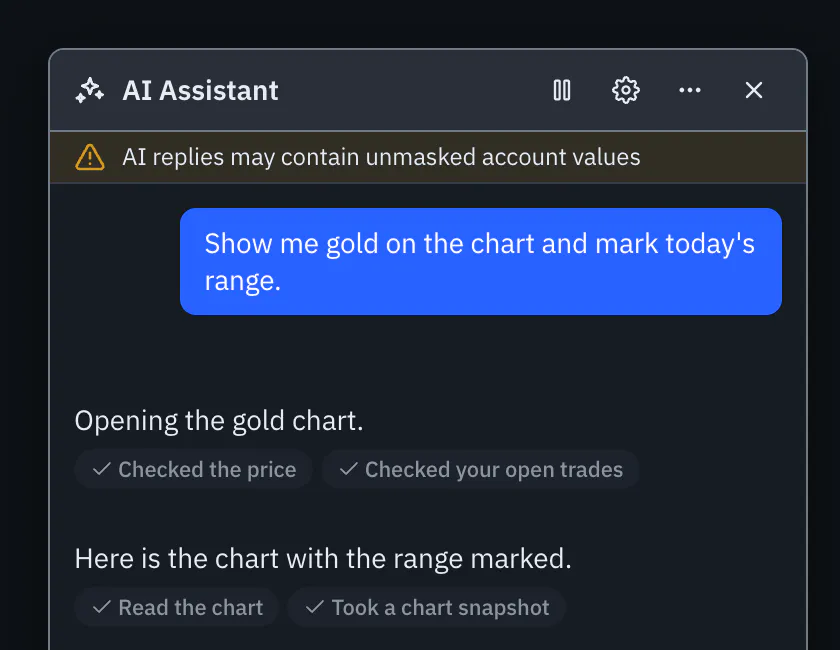
Turn on Streamer Mode in Platform Settings. The AI then does not get your account number, its voice stays quiet, and a strip in the chat reminds you that its replies may show real figures. It still reads the figures it needs to answer, so check a reply before you share it.
Step 5: Check the activity feed
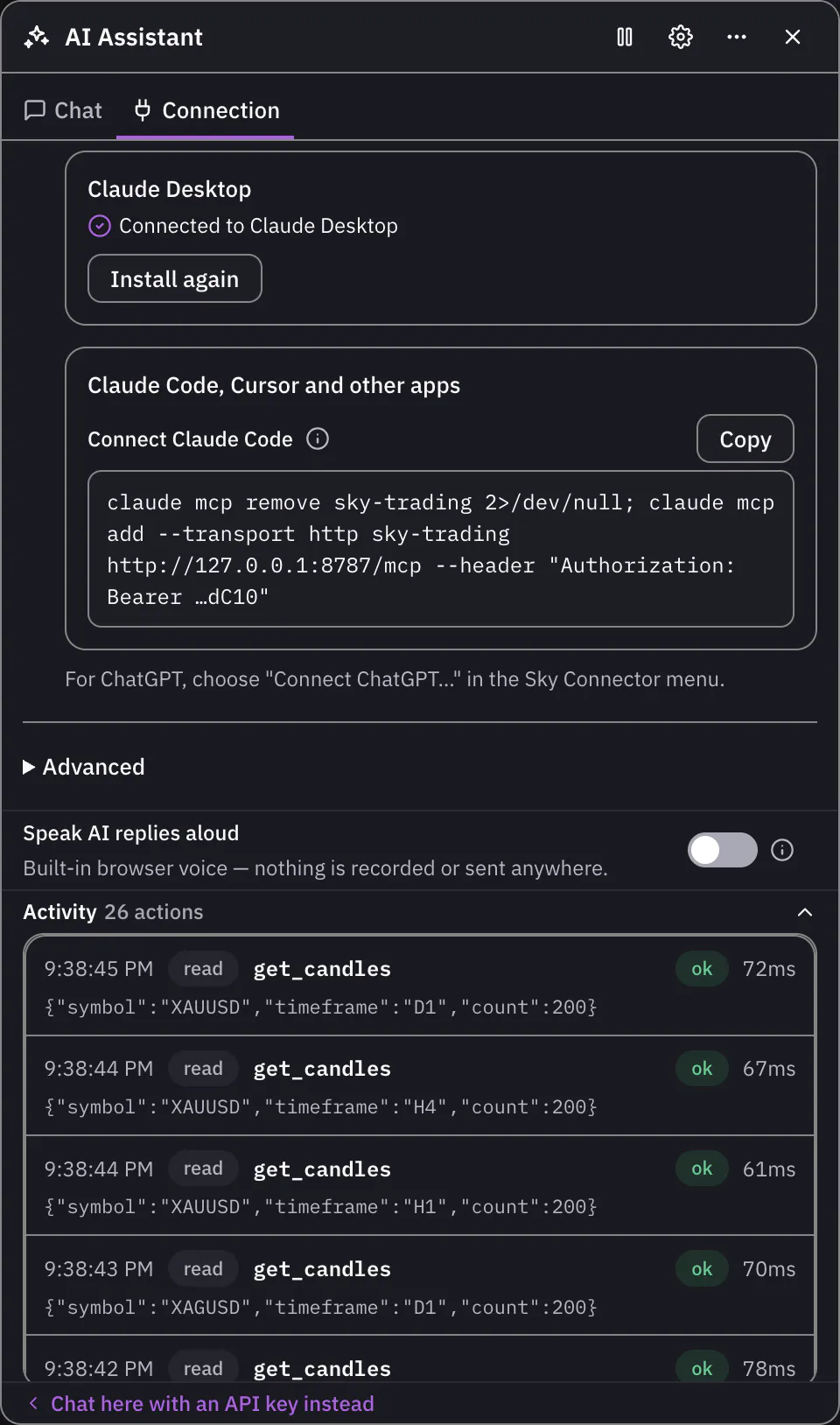
Open the AI Assistant and choose “Use your own AI app” to reach the Connection tab; if you are chatting with your key, open Settings, then Advanced, then “Change connection method”. On the Connection tab, press “Activity”, the row that also shows how many actions there are, to see every action the AI took and every one that was refused, newest first, from the chat and from your AI app. Each account keeps its own record.
Step 6: Know what the AI can never do
The AI cannot trade a real account without your Approve. It cannot delete a watchlist, save or delete a chart template, or change your Platform Settings. It never gets your name or your broker’s comments on your trades, and it cannot trade live while a Trading Lab replay runs. The AI in the chat is also told to ignore instructions hidden in market data and symbol names.


That is the whole guide
You have done every step. Pick what to learn next, or try it on the live chart.
Up next
- Beginner
Chat with the AI using your own key
Paste an API key from Anthropic or an OpenAI-compatible service, let Sky Trade check it, and ask the AI about your chart without leaving the trading screen.
4 min6 steps - Beginner
Add Claude Desktop, with nothing to copy
Connect Claude Desktop from the Connection tab. Claude Desktop shows its own install screen, you click Install, and Claude can read your chart and work with it.
3 min4 steps