
Chat with the AI using your own key
Paste an API key from Anthropic or an OpenAI-compatible service, let Sky Trade check it, and ask the AI about your chart without leaving the trading screen.
- Who it is for
- Traders who have an API key, or want one, and would like the AI right beside the chart.
- Time
- 4 min
- Steps
- 6 steps
Steps in this guide6 steps
Step 1: Open the AI Assistant
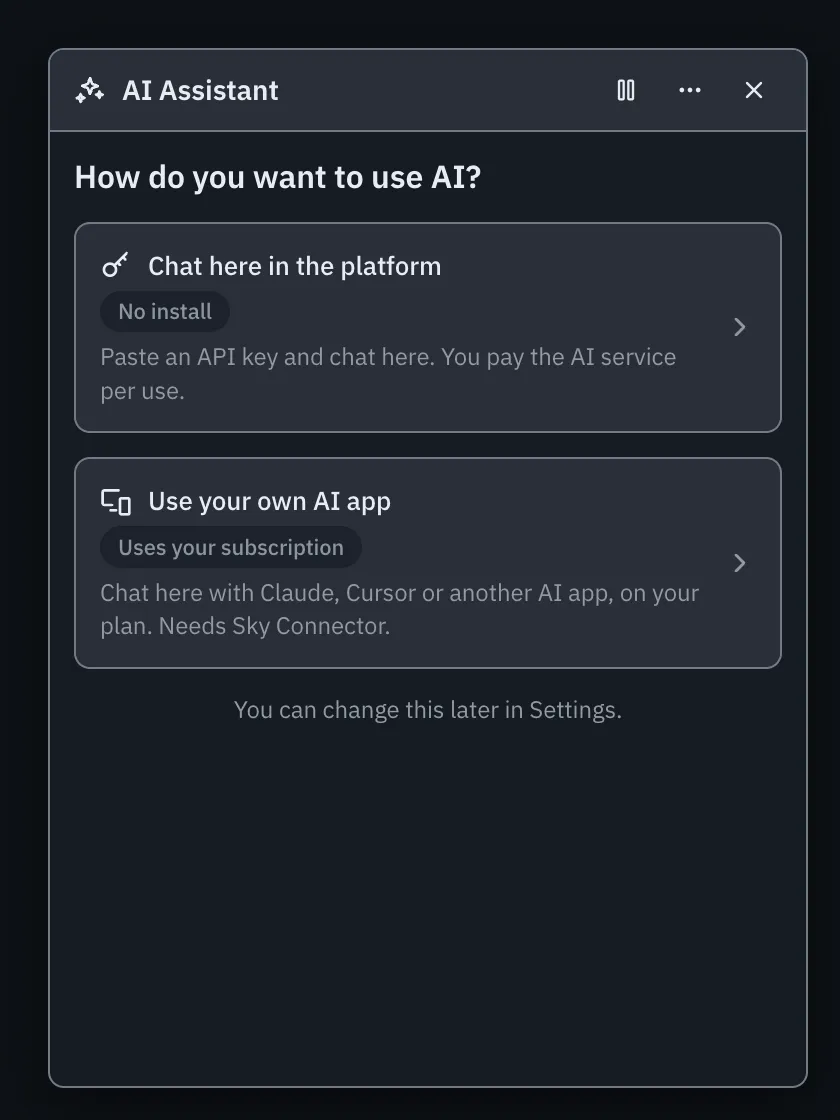
Click the AI Assistant button in the bottom corner of the trading screen. If it asks how you want to use AI, choose “Chat here in the platform”.
Step 2: Paste your API key and press Connect
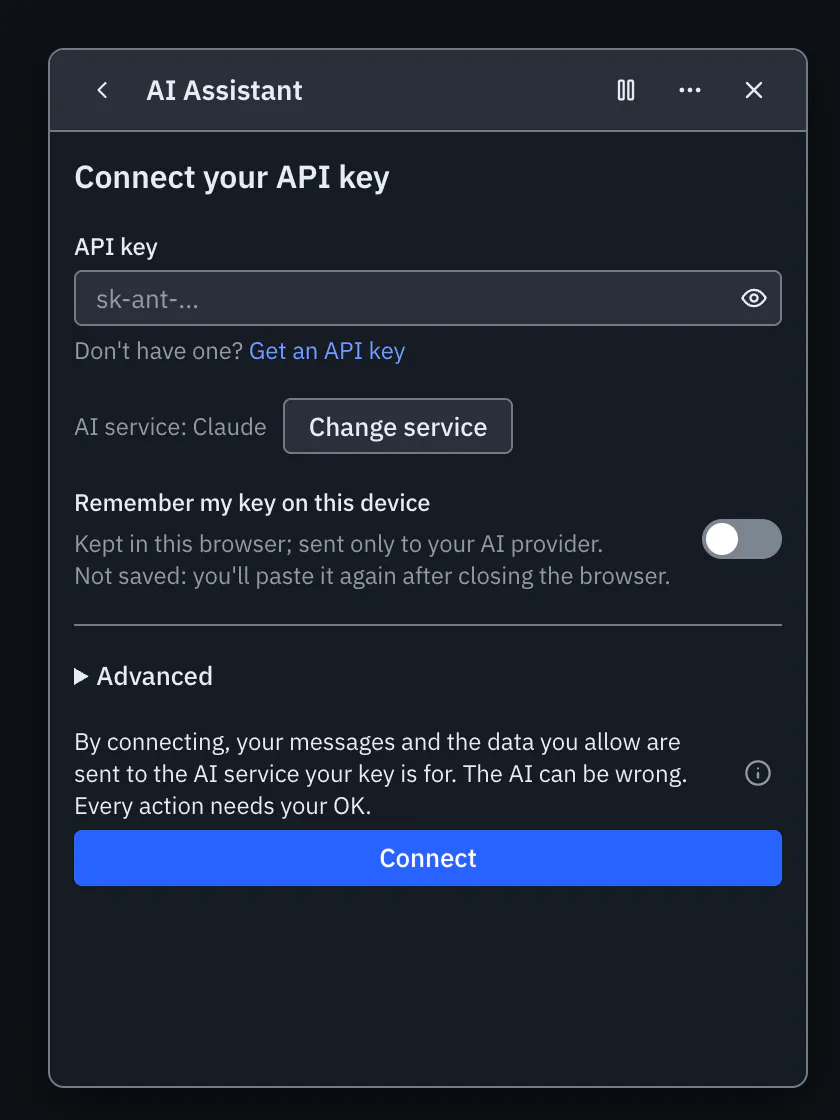
On “Connect your API key”, paste a key from Anthropic (Claude) or from an OpenAI-compatible service such as OpenAI, OpenRouter or Groq. The service is recognised from the key itself. For another compatible service, open Advanced, choose “Something else (advanced)” as the AI provider and enter its endpoint URL. Then press Connect: nothing is checked or sent anywhere before you do.
Step 3: Check the model and press “Start chat”
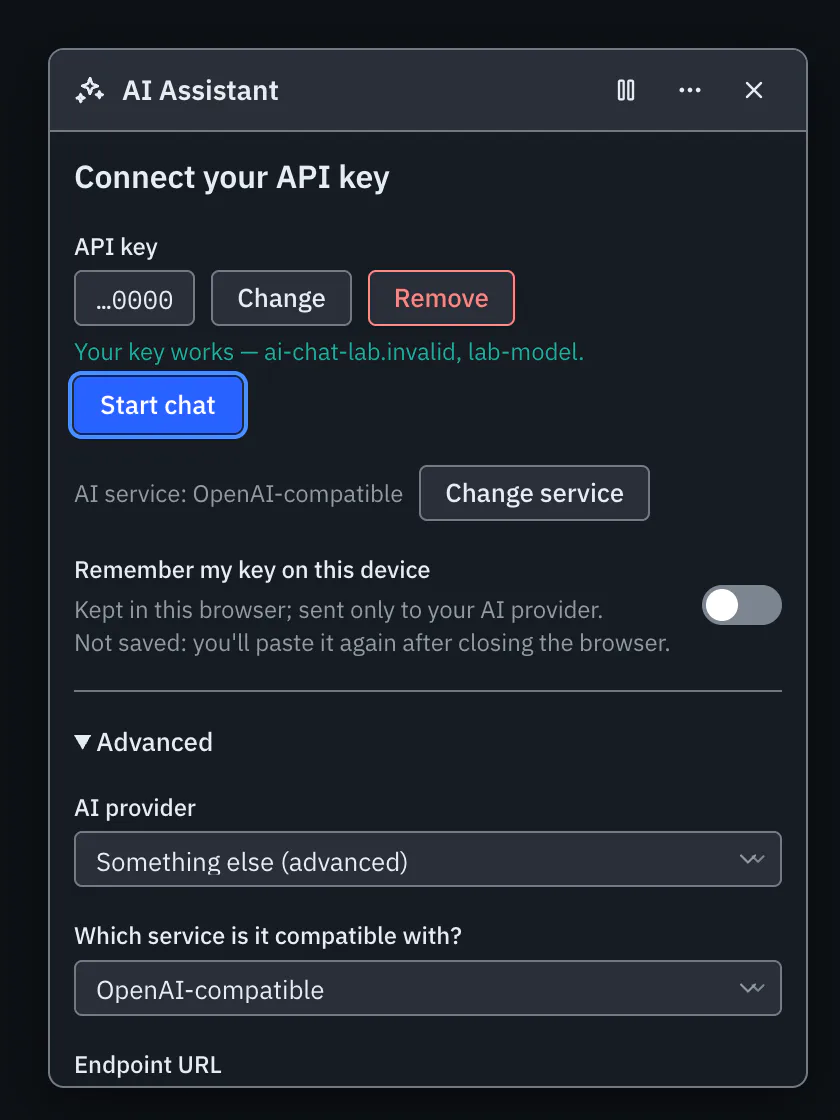
Sky Trade checks the key, then tells you it works and which model it will use. To use another model, open Advanced and pick one under Model: the list shows the models your key can use. Then press “Start chat”.
Step 4: Ask it to read your chart
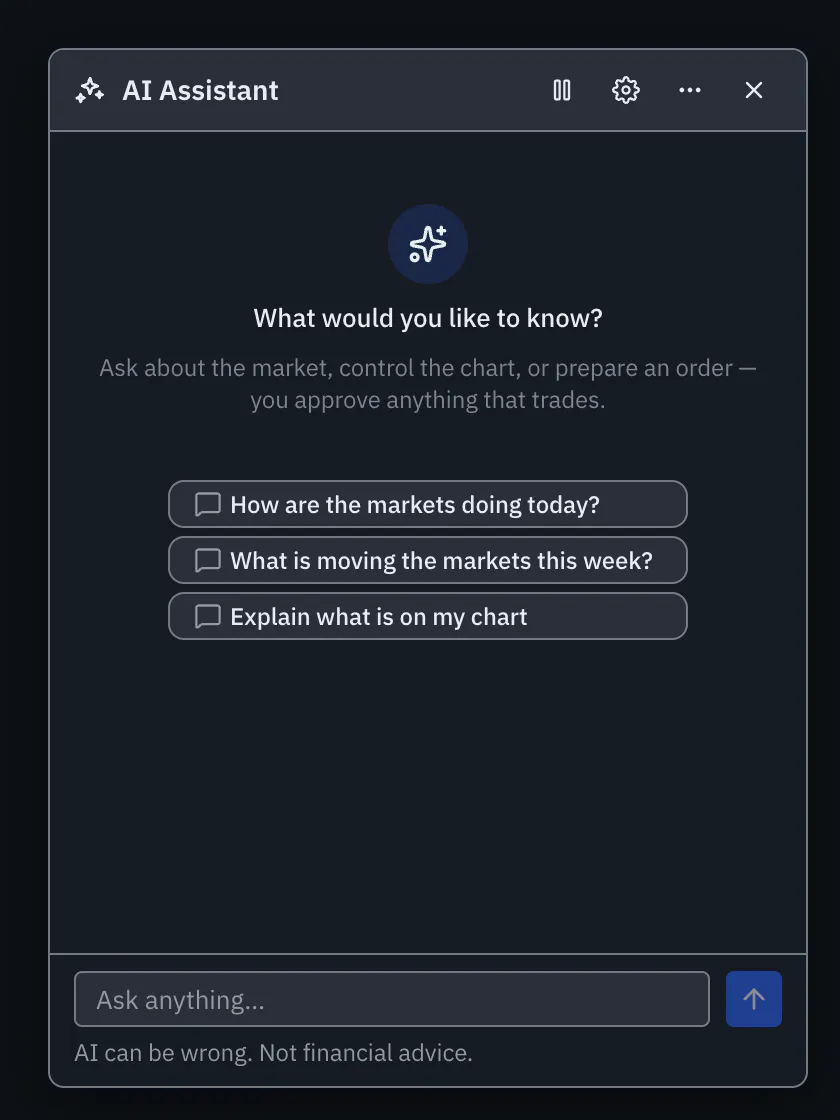
Type a question about the market or the chart in front of you, or pick a suggested question such as “Explain what is on my chart”. A suggestion only fills the message box; you still send it yourself.
Step 5: Ask it to add an indicator or draw
Ask for what you want on the chart, for example an indicator, or a line at a level it just mentioned. Each thing the AI does shows in the chat as a short line in plain words.
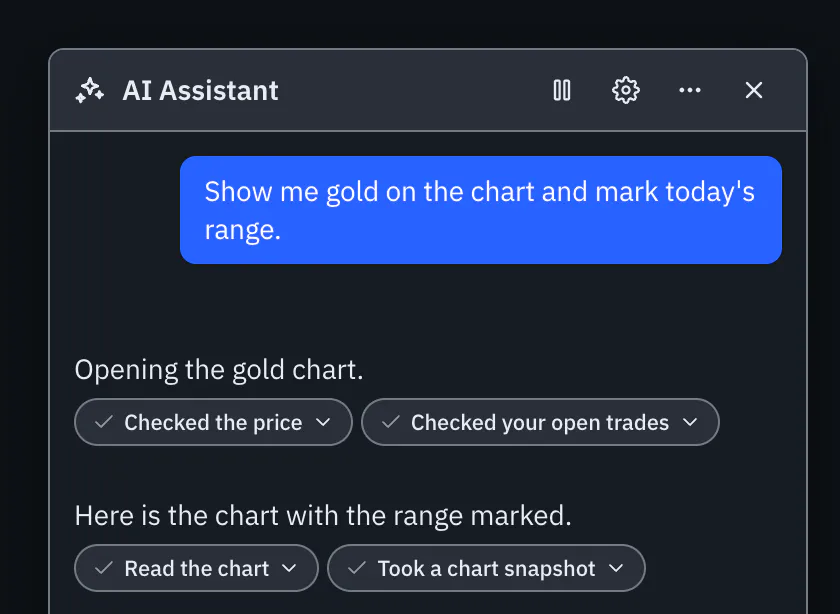
Step 6: Keep it floating or dock it
The chat opens in its own window over the chart. To keep it beside the chart instead, open the More actions menu (the three dots) in its header and choose “Dock to workspace”. “Undock to floating window” brings the window back. You can switch even while it is answering.
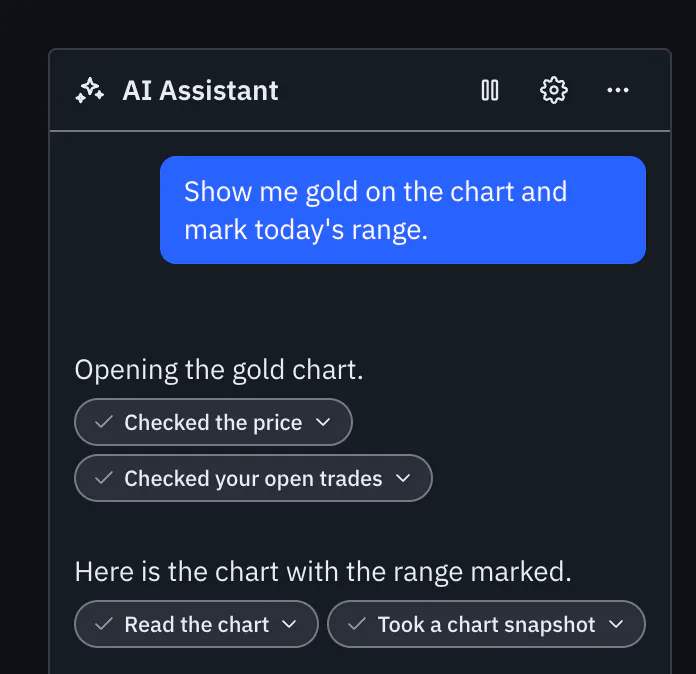


That is the whole guide
You have done every step. Pick what to learn next, or try it on the live chart.
Up next
- Beginner
Stay in control of the AI
The AI stays in check: approval for every real trade, direct demo trading only where you choose it, pause switches, Streamer Mode and a record of what it did.
4 min6 steps - Beginner
Hear the AI’s replies
Turn on the AI voice and the AI reads its replies aloud, an Arabic reply in an Arabic voice, so your eyes can stay on the chart.
2 min3 steps