
Multi-chart layouts and workspaces
Put up to 6 charts side by side, arrange the panels the way you work, and save the whole screen as a workspace you can open again.
- Who it is for
- Traders who watch several markets at once, or one market on several timeframes.
- Time
- 6 min
- Steps
- 5 steps
Steps in this guide5 steps
Step 1: Open the Chart layout picker
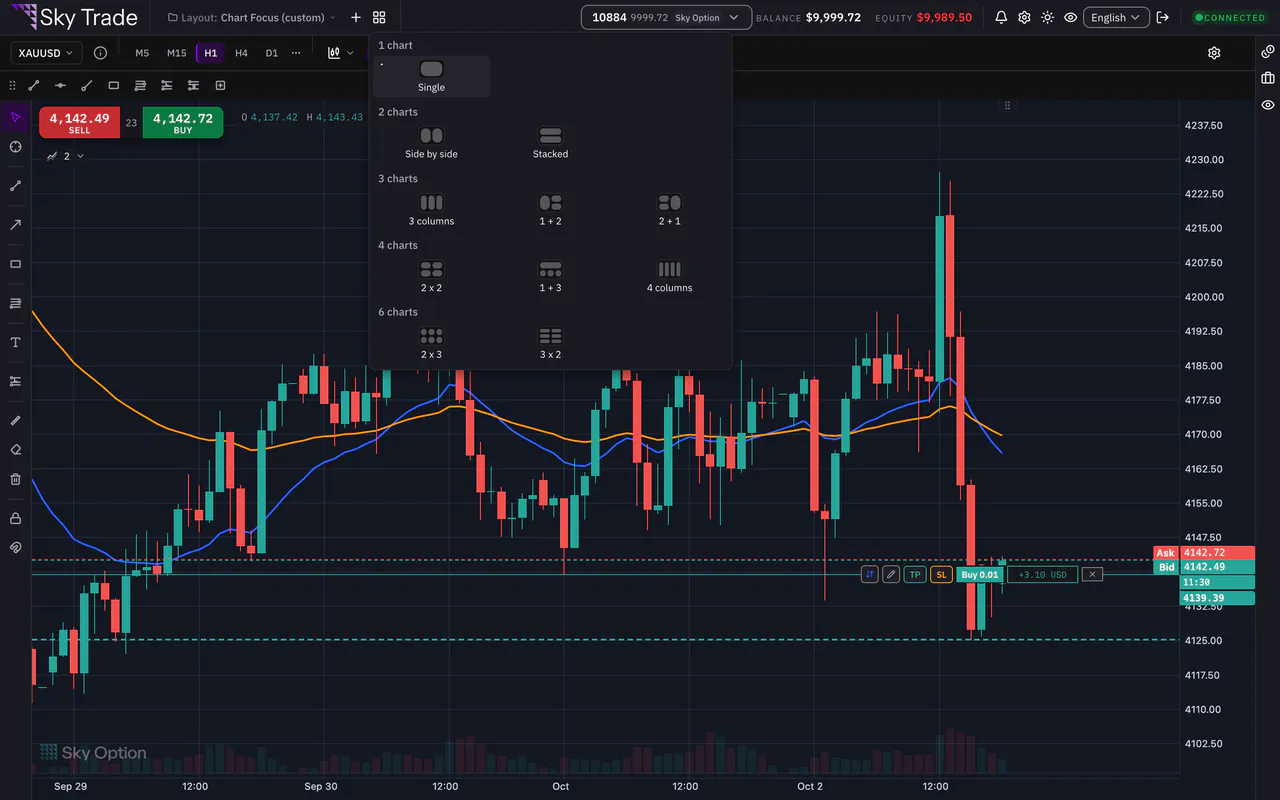
In the bar at the top of the platform, next to Layout, press Chart layout (the grid button). It offers 11 arrangements, grouped by how many charts they hold.
Step 2: Pick an arrangement with more than one chart
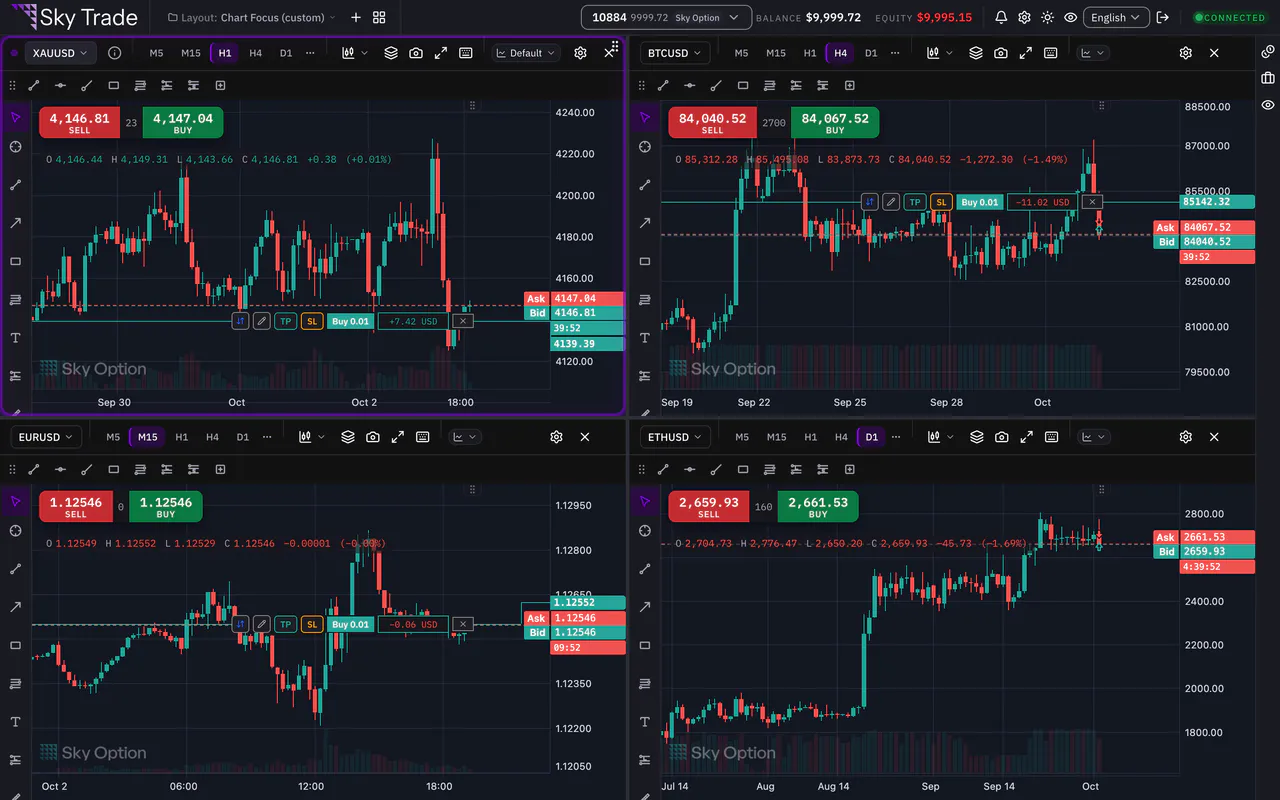
Choose one, for example Side by side or Stacked. The charts appear straight away, each in its own panel that you can resize by dragging the line between them. The arrangement in use is ticked; once you drag the panels into a shape of your own, none is.
Step 3: Give each chart its own symbol and timeframe
Click a chart to make it the active one, then choose its symbol and timeframe in that chart’s own toolbar. Each chart also keeps its own chart type, indicators, drawings and template. A symbol you click in the watchlist opens on the active chart.
Step 4: Start from a ready workspace, then drag panels where you want them
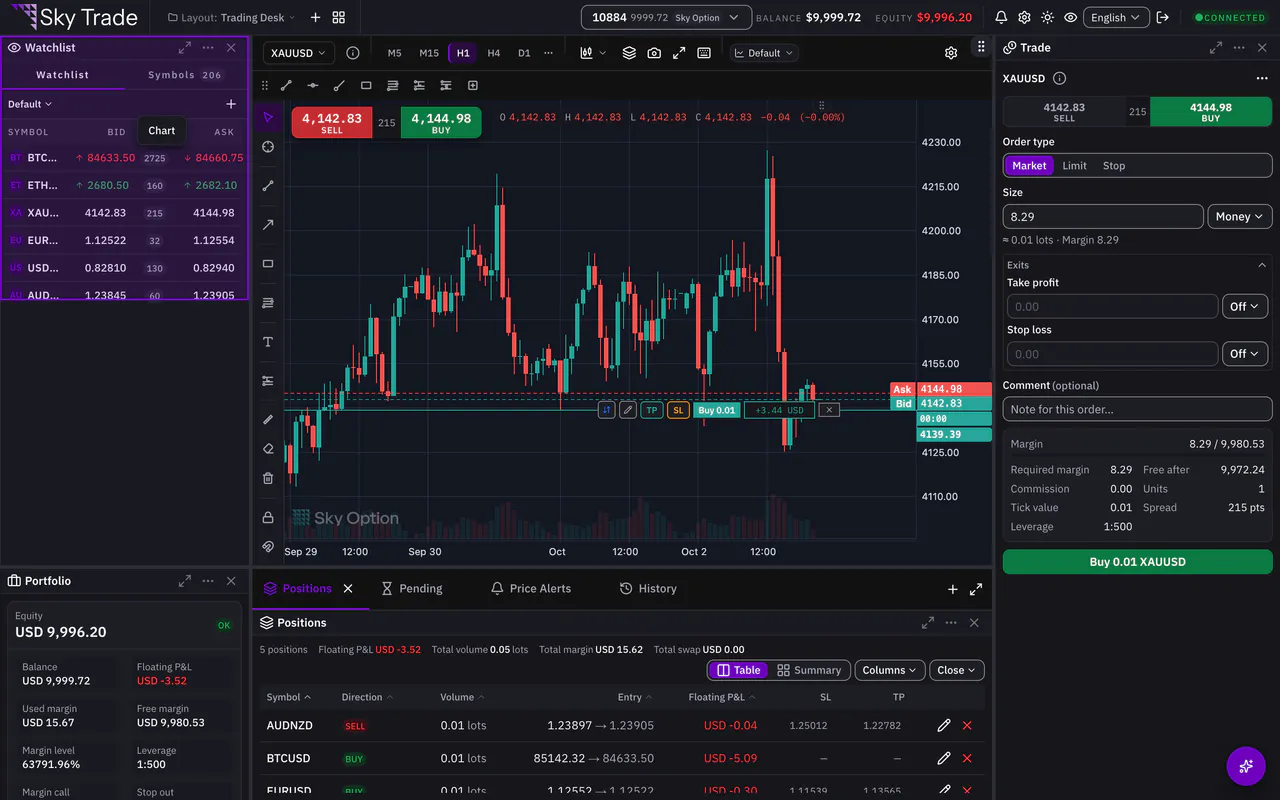
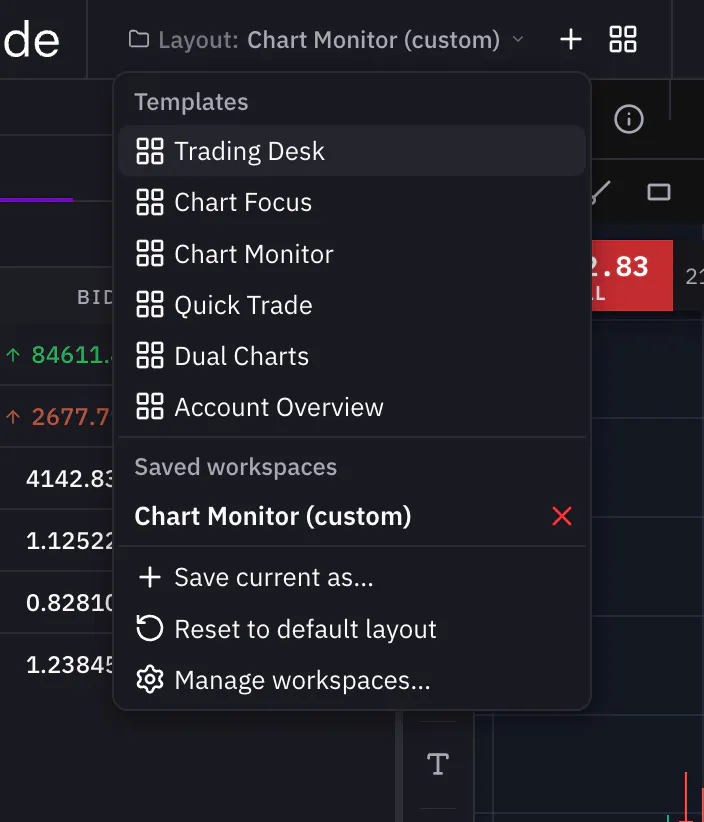
Open the Layout menu. Under Templates are the ready workspaces: Trading Desk, Chart Focus, Chart Monitor, Quick Trade, Dual Charts and Account Overview. To move a panel, drag it by its header (a chart by the grip that appears in its corner when you point at it). Drop it in the middle of another panel to join it as a tab, or near an edge to place it beside, above or below.
Step 5: Give one panel the whole screen, then save your workspace
Press Maximize in a panel’s header to give it the whole workspace, and press Esc to bring the layout back. For a chart, Toggle fullscreen in its toolbar (or Alt+F or OptionF on a Mac) fills the whole window with it, and the same button brings it back. When the screen looks right, open the Layout menu, choose Save current as…, type a name and press Save. It now waits under Saved workspaces.


That is the whole guide
You have done every step. Pick what to learn next, or try it on the live chart.
Up next
- Pro
Save and reuse chart templates
Save a whole chart setup: colours for both themes, the chart type, indicators and drawings. Put it on any chart, or take it to another computer in a file.
4 min4 steps - Pro
Keyboard shortcuts for the chart
Pick drawing tools, undo, open the indicators and save your template without reaching for the mouse. The chart answers to 30 shortcuts.
3 min4 steps - Beginner
Install Sky Trade Desktop
Download Sky Trade Desktop for Mac, Windows or Linux, install it, log in, and turn on the AI connection that comes built in.
5 min5 steps