
Hide your money with Streamer Mode
Share your screen or stream your trading without showing your account number, your money or your lot sizes.
- Who it is for
- Traders who share their screen, stream or record videos.
- Time
- 2 min
- Steps
- 4 steps
Steps in this guide4 steps
Step 1: Turn on Streamer Mode
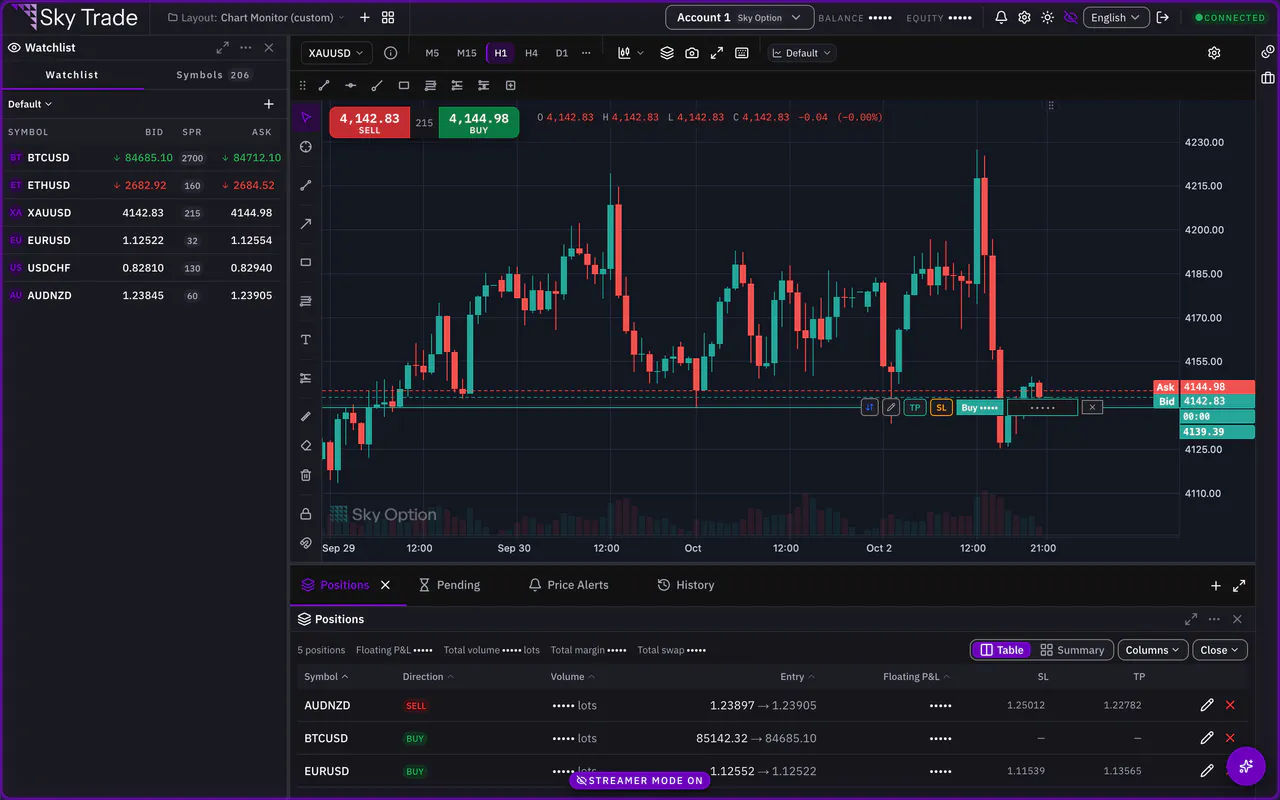
Click the Streamer Mode button in the header. A Streamer Mode ON badge appears and stays in view, and a coloured frame runs around the window, so you can always tell it is on.
Step 2: What it hides
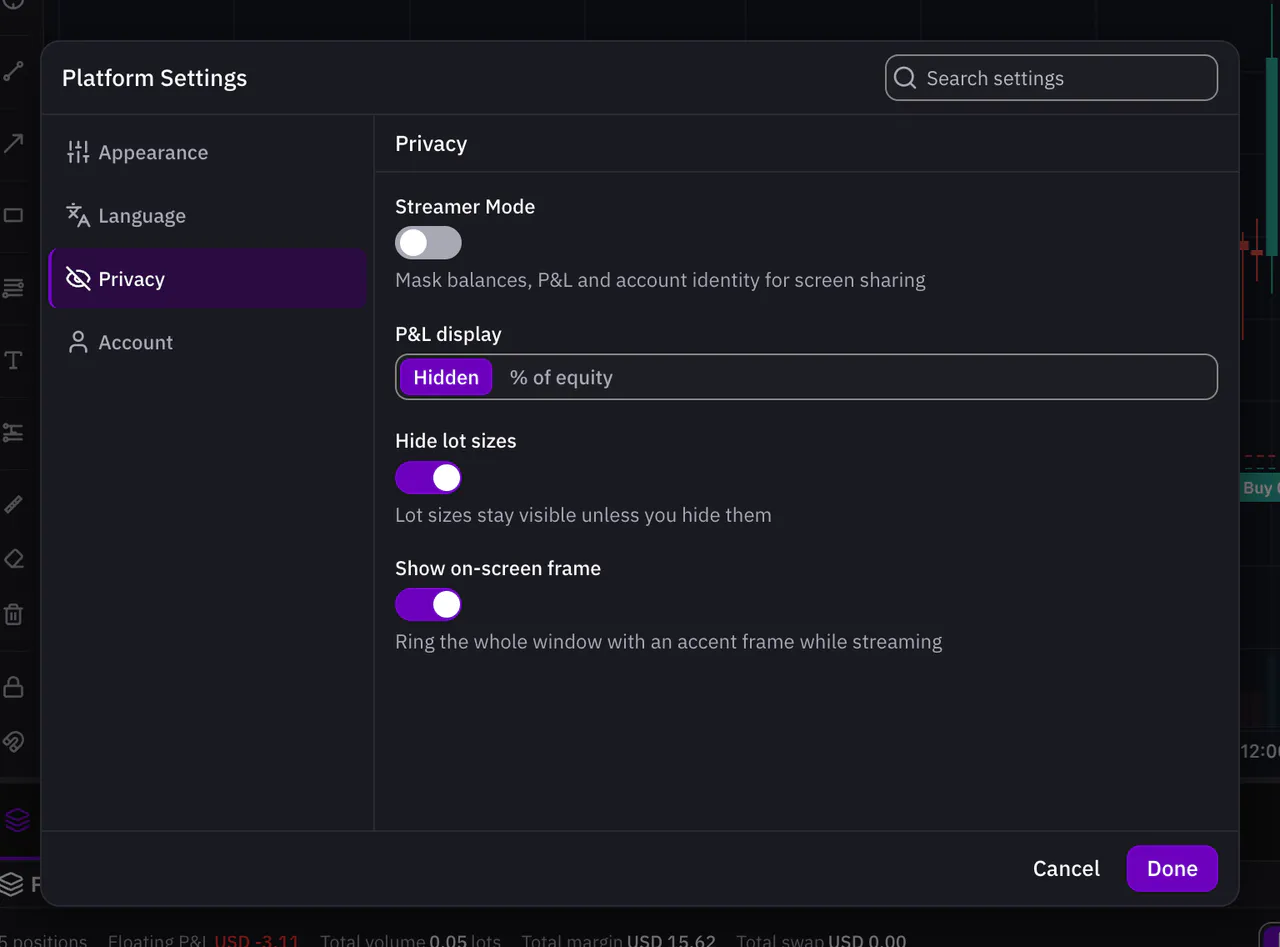
Your account number and every money figure, such as balance and equity, turn into dots. Profit and loss is hidden, or shown as a % of equity if you prefer. Lot sizes are hidden too. This covers the header, the panels, the order ticket, the labels on the chart, the Events list and share images.
Step 3: What the AI still sees
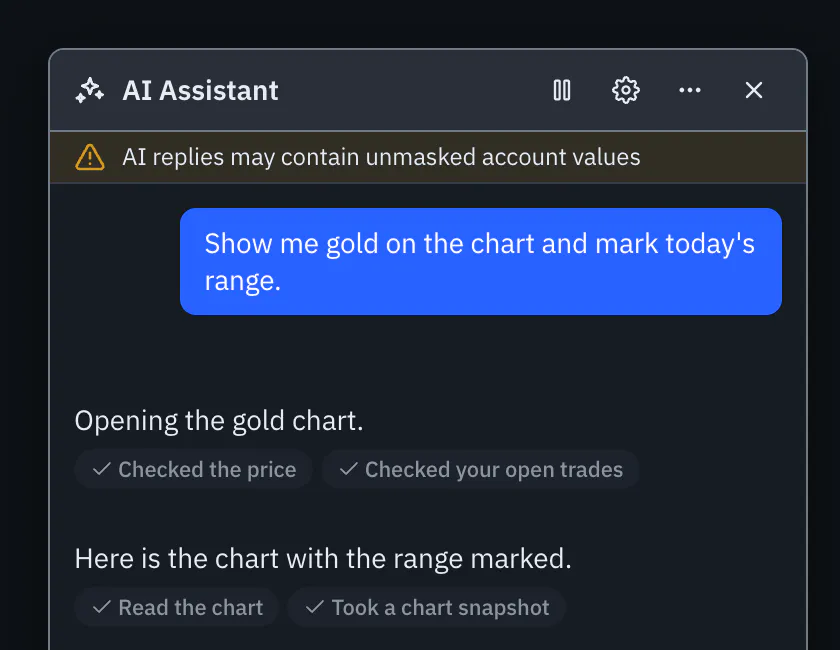
With Streamer Mode on, the AI stops seeing your account number and its voice goes quiet. It still reads the figures it needs to answer, so a reply in the chat can show real amounts. A warning strip in the chat reminds you of this.
Step 4: Turn it off
Click the Streamer Mode button in the header again, or click the Streamer Mode ON badge to open Privacy in Platform Settings and switch it off there. Your figures come back at once.


That is the whole guide
You have done every step. Pick what to learn next, or try it on the live chart.
Up next
- Beginner
Change the look and the language
Pick a theme, the spacing and the text size you like, switch between English and Arabic, and colour your chart.
3 min5 steps - Beginner
A tour of the Sky Trade screen
Learn what each part of the screen is for, from the header to the AI button, so you always know where to look.
4 min7 steps