
Install Sky Trade Desktop
Download Sky Trade Desktop for Mac, Windows or Linux, install it, log in, and turn on the AI connection that comes built in.
- Who it is for
- Anyone who wants Sky Trade in its own app on a computer, with more windows for more charts, Touch ID on a Mac and the AI connection built in.
- Time
- 5 min
- Steps
- 5 steps
Steps in this guide5 steps
Step 1: Download the file for your computer
On the Apps page of this site, press “Download Sky Trade Desktop”. It opens the latest release on GitHub. Under “Assets”, pick the file for your system: the one ending in universal.dmg for a Mac (Apple silicon or Intel), Setup.exe for Windows, or .AppImage for Linux.
Step 2: Install it
Mac: open the .dmg file, drag Sky Trade into the Applications folder, then open it from there. Windows: run the Setup file and follow the installer; you can choose the folder, and it adds a desktop shortcut. Linux: make the AppImage executable (in its Properties, or with the command below), then open it. If it does not start, install FUSE from your system’s package manager; AppImages need it.
Copy and pastechmod +x SkyTrade-*.AppImage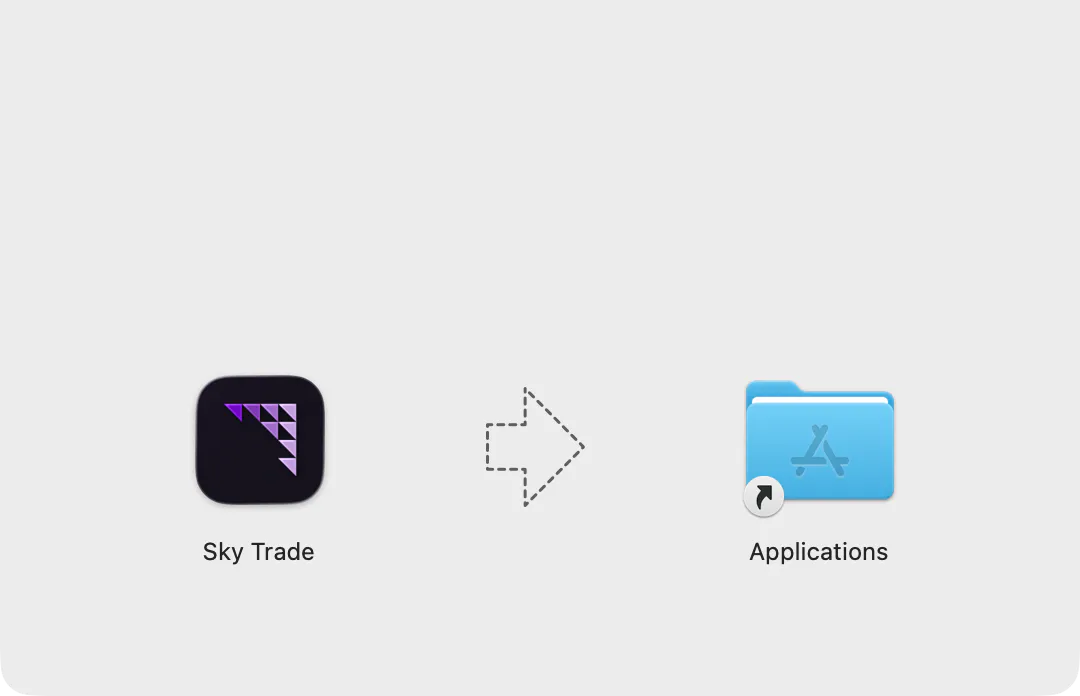
Step 3: Log in to your trading account
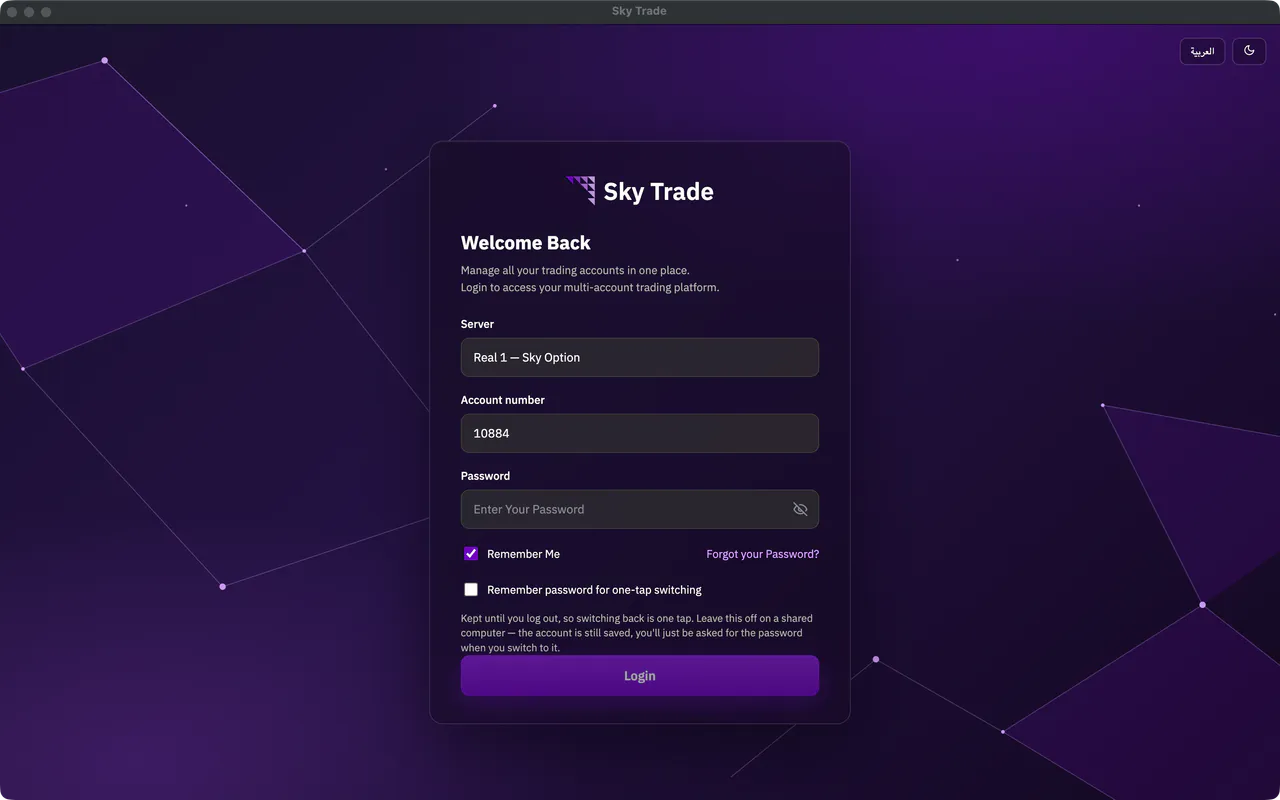
Choose your broker’s server (type to search), enter your account number and password, and press “Login”. “Remember Me” keeps only the server and the account number for next time. “Remember password for one-tap switching” keeps the password too, until you log out; leave it off on a shared computer.
Step 4: Unlock with Touch ID on a Mac
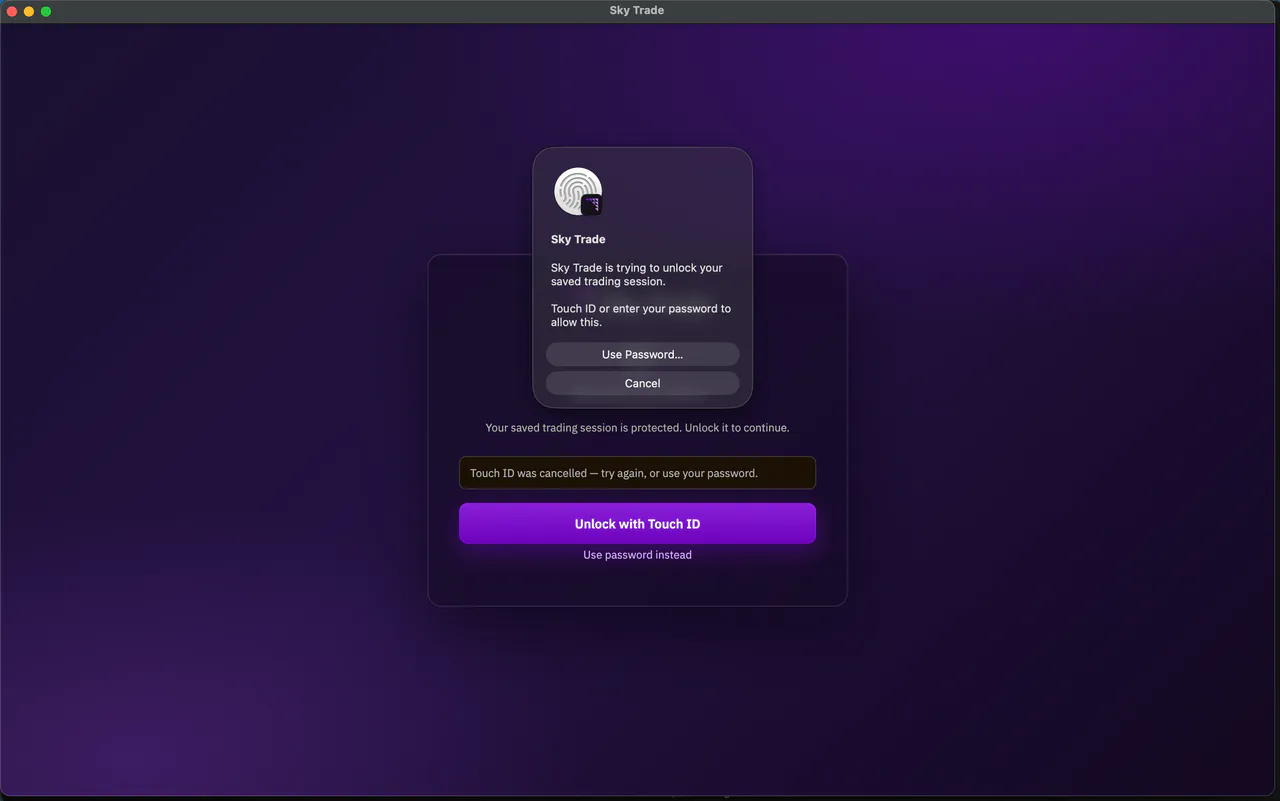
On a Mac with Touch ID, the app starts locked when you open it again with your session saved, and macOS asks for your fingerprint right away: touch the sensor. If you cancel, press “Unlock with Touch ID” to try again. It locks again when the Mac sleeps or its screen locks. “Use password instead” takes you to the login form, and your saved accounts stay as they are.
Step 5: Turn on the built-in AI connection
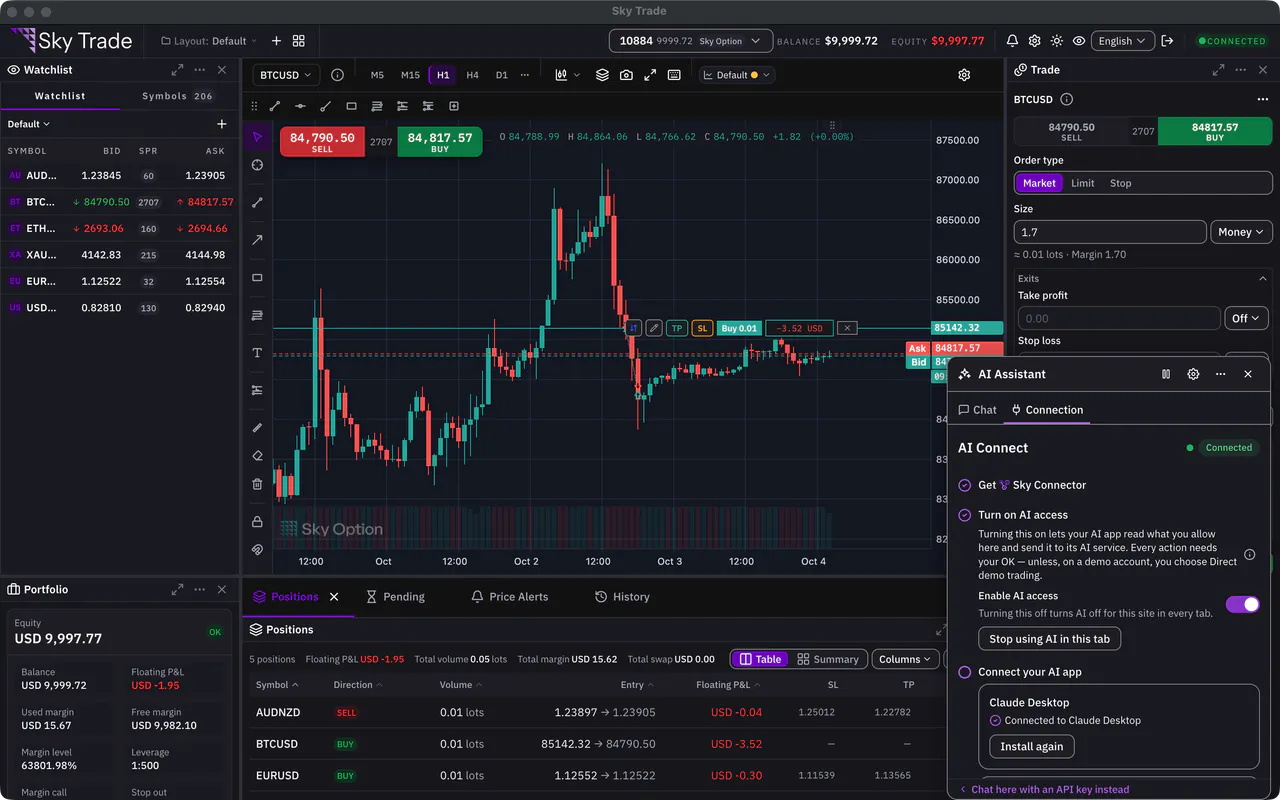
Open the AI Assistant from its floating button in a bottom corner of the window, choose “Use your own AI app”, and turn on “Enable AI access”. The connection is part of Sky Trade Desktop: there is nothing else to install and no pairing request to approve. If the chat already uses an API key, you can switch methods anytime from the “Settings” button. Then connect your AI app as the AI guides show.


That is the whole guide
You have done every step. Pick what to learn next, or try it on the live chart.
Up next
- Pro
Multi-chart layouts and workspaces
Put up to 6 charts side by side, arrange the panels the way you work, and save the whole screen as a workspace you can open again.
6 min5 steps - Beginner
Add Claude Desktop, with nothing to copy
Connect Claude Desktop from the Connection tab. Claude Desktop shows its own install screen, you click Install, and Claude can read your chart and work with it.
3 min4 steps