
Save and reuse chart templates
Save a whole chart setup: colours for both themes, the chart type, indicators and drawings. Put it on any chart, or take it to another computer in a file.
- Who it is for
- Traders who build the same chart again and again, or trade from more than one computer.
- Time
- 4 min
- Steps
- 4 steps
Steps in this guide4 steps
Step 1: Save your setup as a template
Set up a chart the way you like it. Open the template button at the top of the chart, choose Save as…, give the template a name and save it. From then on, Ctrl+S or CommandS on a Mac saves your changes into that same template, and every other chart using it updates too. You can keep up to 50 templates.
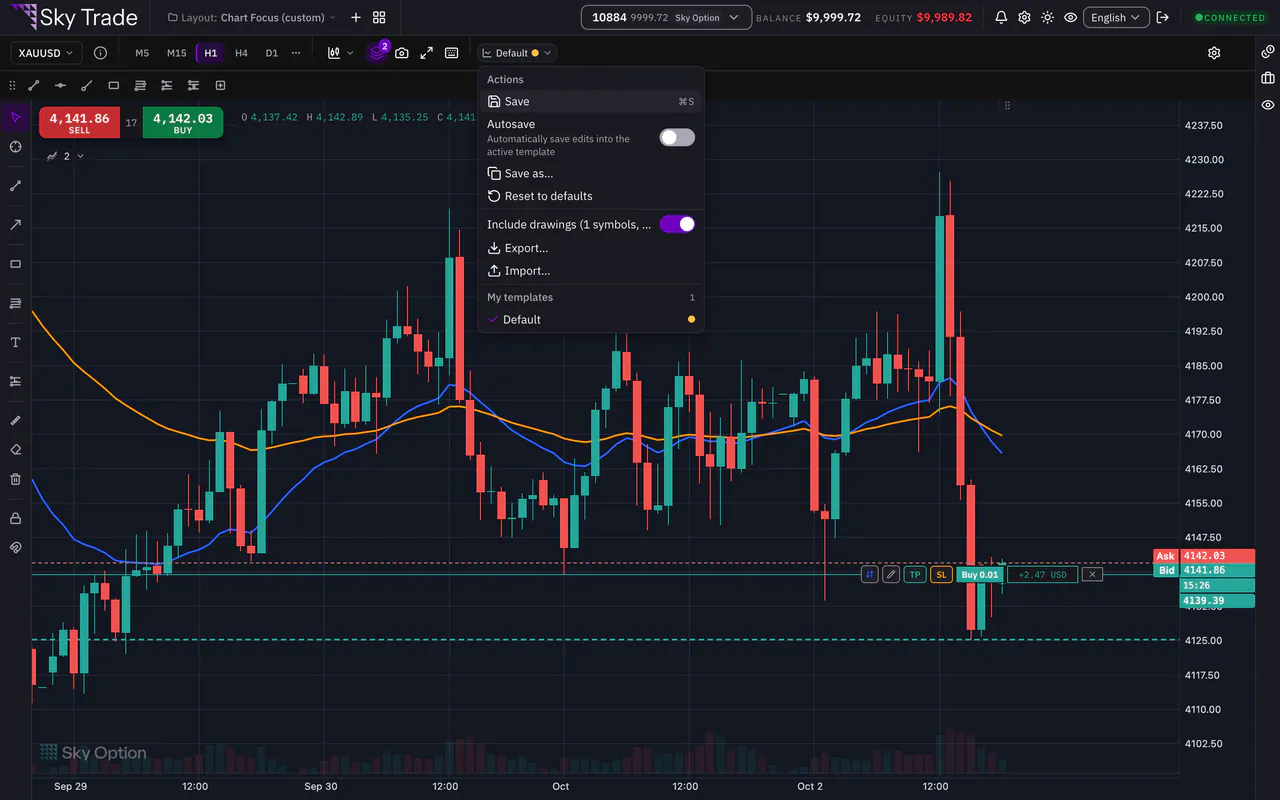
Step 2: Apply it to another chart
On another chart, open its template button and pick your template under My templates. If that chart has unsaved changes, Sky Trade asks first: Save changes, Discard or Cancel. The chart keeps its own symbol and timeframe; a template never changes them.
Step 3: Export it as a file
Open the template button and choose Export…. Sky Trade downloads the template as a .skytemplate.json file. Include drawings is on, so your drawings travel with it; switch it off first to leave them out.
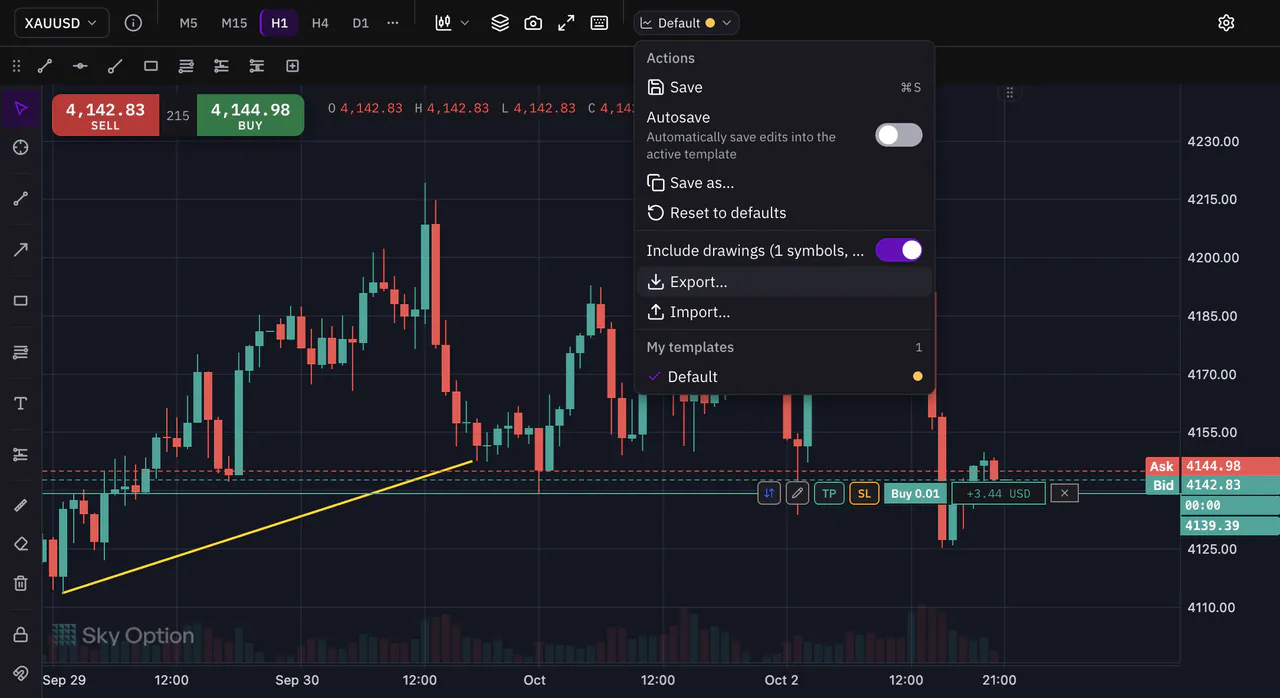
Step 4: Import a template
On the other computer, choose Import… in the same menu and pick the file. Sky Trade checks it and shows what it holds. Press Add to my templates to keep it, or Add and apply to use it on this chart straight away.
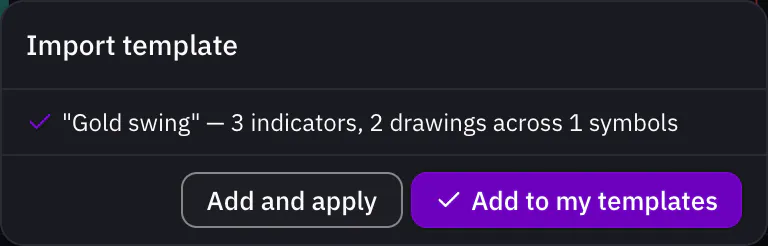


That is the whole guide
You have done every step. Pick what to learn next, or try it on the live chart.
Up next
- Pro
Feed one indicator into another
Smooth RSI with a moving average, or run RSI on the MACD histogram: pick another indicator’s line as the Source. 11 indicators have one, with no scripting.
4 min4 steps - Pro
Multi-chart layouts and workspaces
Put up to 6 charts side by side, arrange the panels the way you work, and save the whole screen as a workspace you can open again.
6 min5 steps