
Keyboard shortcuts for the chart
Pick drawing tools, undo, open the indicators and save your template without reaching for the mouse. The chart answers to 30 shortcuts.
- Who it is for
- Traders who like to keep their hands on the keyboard.
- Time
- 3 min
- Steps
- 4 steps
Steps in this guide4 steps
Step 1: Open the shortcuts list
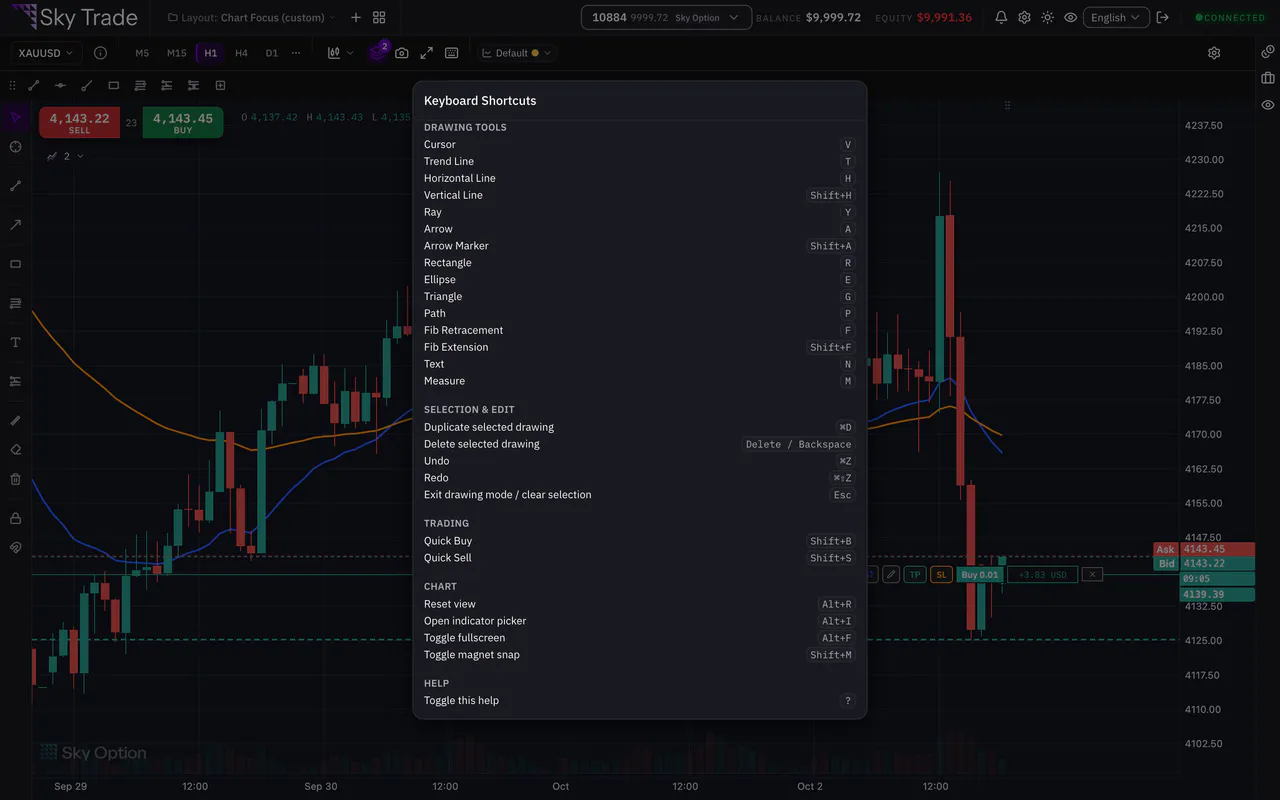
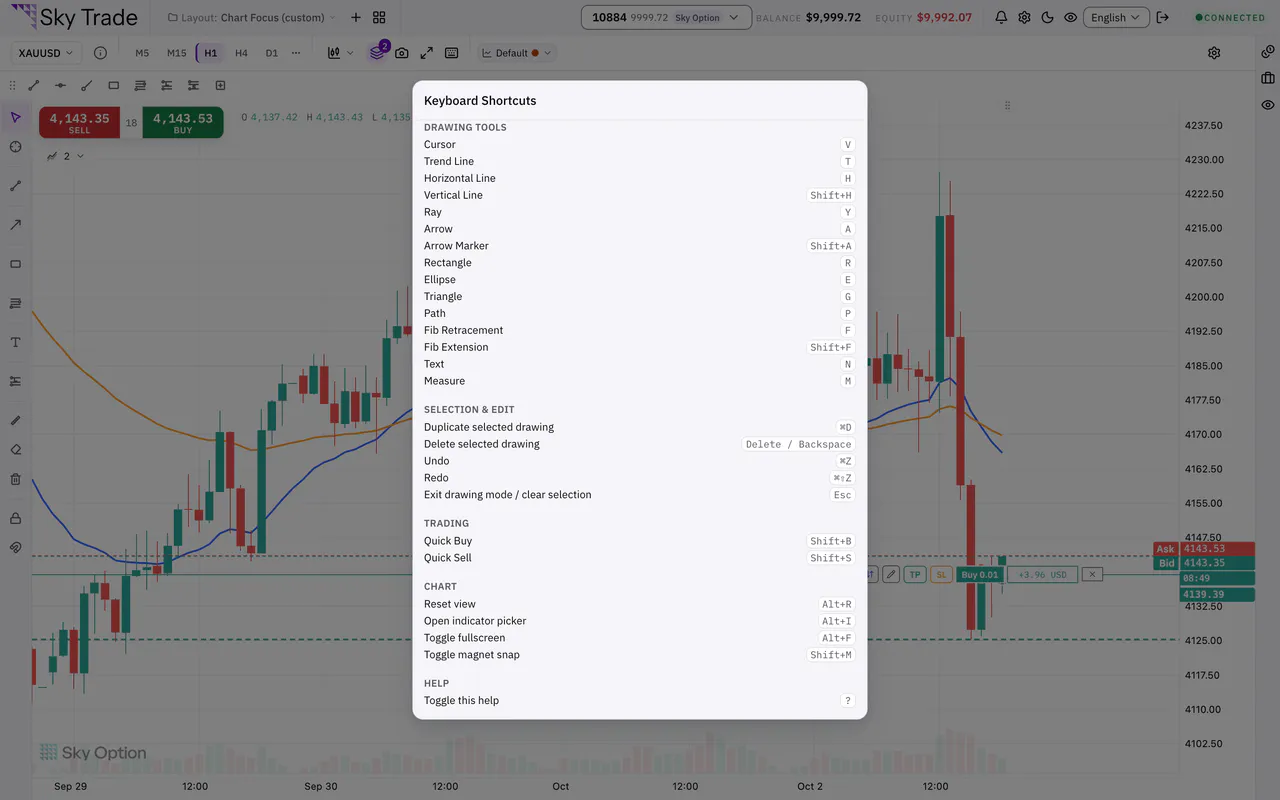
Click a chart, then press ? (or the Keyboard shortcuts button in the chart’s toolbar). The list opens in groups: Drawing Tools, Selection & Edit, Trading (when trading is on), Chart and Help. Press ? again, or Esc, to close it.
Step 2: Pick a drawing tool with one letter
T draws a trend line, H a horizontal line, Y a ray, R a rectangle, F a Fibonacci retracement, N a text and M a measurement; V goes back to the cursor. Some letters pick a second tool with Shift: Shift+H for a vertical line, Shift+F for a Fibonacci extension, Shift+A for an arrow marker.
Step 3: Edit and move around with the chart keys
Ctrl+Z or CommandZ on a Mac undoes and Ctrl+Shift+Z or CommandShiftZ on a Mac redoes. Ctrl+D or CommandD on a Mac duplicates the selected drawing and Delete removes it. Alt+R or OptionR on a Mac resets the view, Alt+I or OptionI on a Mac opens the indicator picker, Alt+F or OptionF on a Mac toggles full screen, Shift+M turns magnet snap on or off, and Ctrl+S or CommandS on a Mac saves your chart template.
Step 4: Know the two keys that trade
Shift+B is Quick Buy and Shift+S is Quick Sell, for the chart that has focus.


That is the whole guide
You have done every step. Pick what to learn next, or try it on the live chart.
Up next
- Pro
Multi-chart layouts and workspaces
Put up to 6 charts side by side, arrange the panels the way you work, and save the whole screen as a workspace you can open again.
6 min5 steps - Pro
Trade from the chart
Move your take profit, stop loss and pending entries by dragging them on the chart, and see what the trade would make or lose before you confirm.
6 min5 steps