
Hear the AI’s replies
Turn on the AI voice and the AI reads its replies aloud, an Arabic reply in an Arabic voice, so your eyes can stay on the chart.
- Who it is for
- Anyone using the AI chat or a connected AI app who would rather listen than read.
- Time
- 2 min
- Steps
- 3 steps
Steps in this guide3 steps
Step 1: Turn on “Speak AI replies aloud”
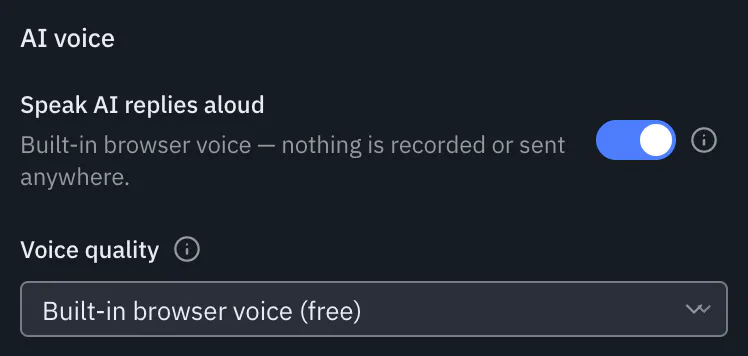
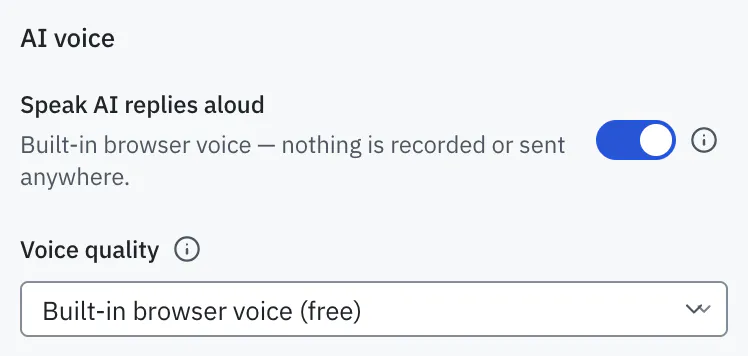
Open Settings in the AI Assistant, or the Connection tab, and turn on “Speak AI replies aloud” in the AI voice section. It stays off until you turn it on. Under Voice quality, keep “Built-in browser voice (free)”, or choose “Natural voice (OpenAI, paid)” and add your OpenAI key.
Step 2: Listen to the replies, Arabic ones in Arabic
Each finished reply is read aloud. A reply written in Arabic is spoken in Arabic, even when Sky Trade is in English; any other reply is read in the language Sky Trade is set to. While it speaks, a small control beside the AI Assistant button lets you pause or stop it. The voice only speaks; you still type your questions.
Step 3: Let Streamer Mode keep it quiet
Turn on Streamer Mode in Platform Settings before you share your screen, and the AI voice goes quiet: nothing is read aloud while it is on, from the chat or from your AI app.


That is the whole guide
You have done every step. Pick what to learn next, or try it on the live chart.
Up next
- Beginner
Talk to your AI app from inside Sky Trade
Connected Claude Desktop, Claude Code or Cursor? Send it one start message, then chat with it in the Chat tab without leaving the trading screen.
3 min5 steps - Beginner
Stay in control of the AI
The AI stays in check: approval for every real trade, direct demo trading only where you choose it, pause switches, Streamer Mode and a record of what it did.
4 min6 steps