
Change the look and the language
Pick a theme, the spacing and the text size you like, switch between English and Arabic, and colour your chart.
- Who it is for
- Every trader who wants Sky Trade to look and read their way.
- Time
- 3 min
- Steps
- 5 steps
Steps in this guide5 steps
Step 1: Open Platform Settings
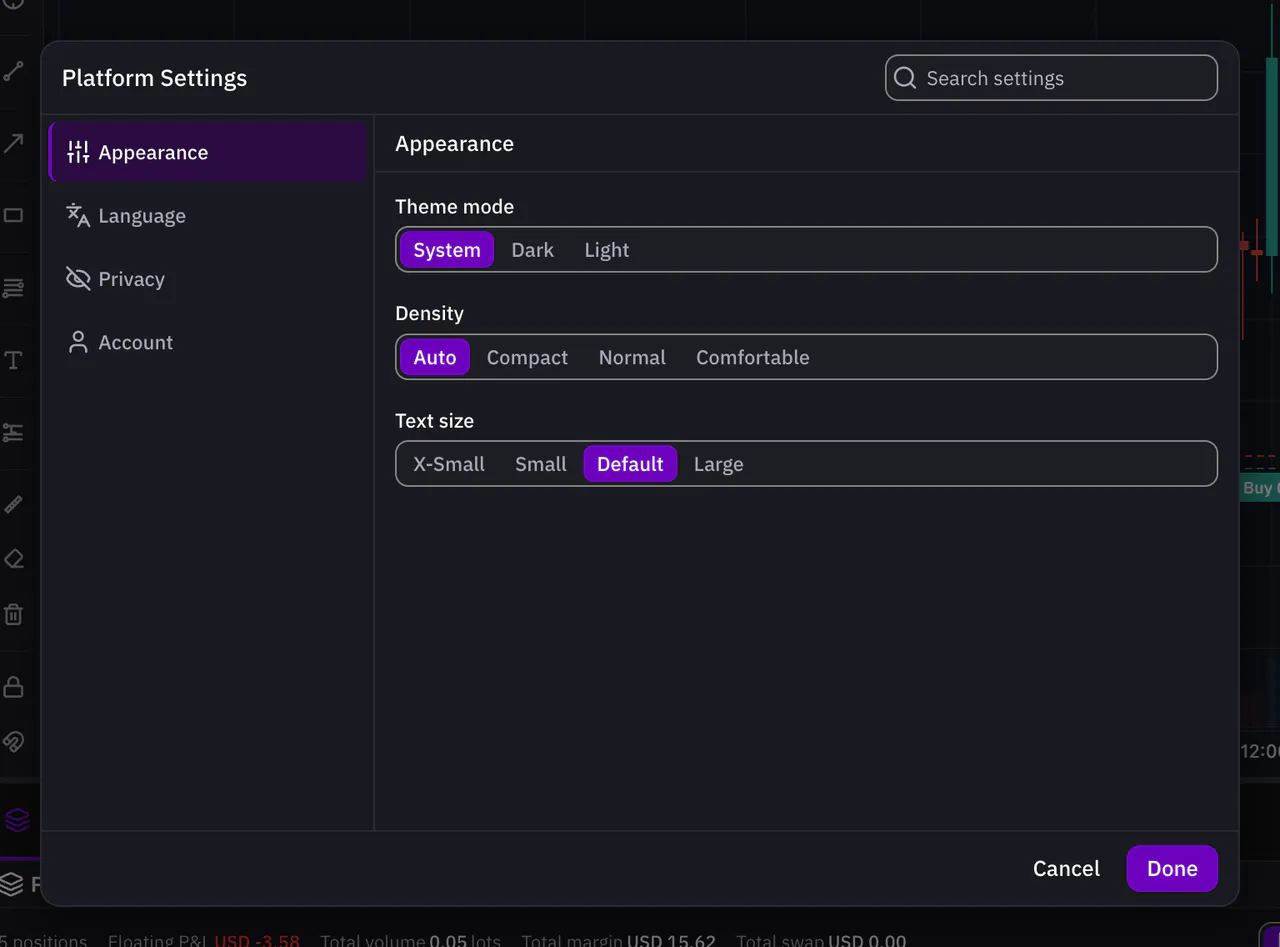
Click the gear in the header. Platform Settings opens with its sections on the side, such as Appearance, Language and Privacy. Type in Search settings to find an option fast.
Step 2: Choose a theme
Under Appearance, set Theme mode to System, Dark or Light. System follows your computer, so Sky Trade turns dark when your computer does.
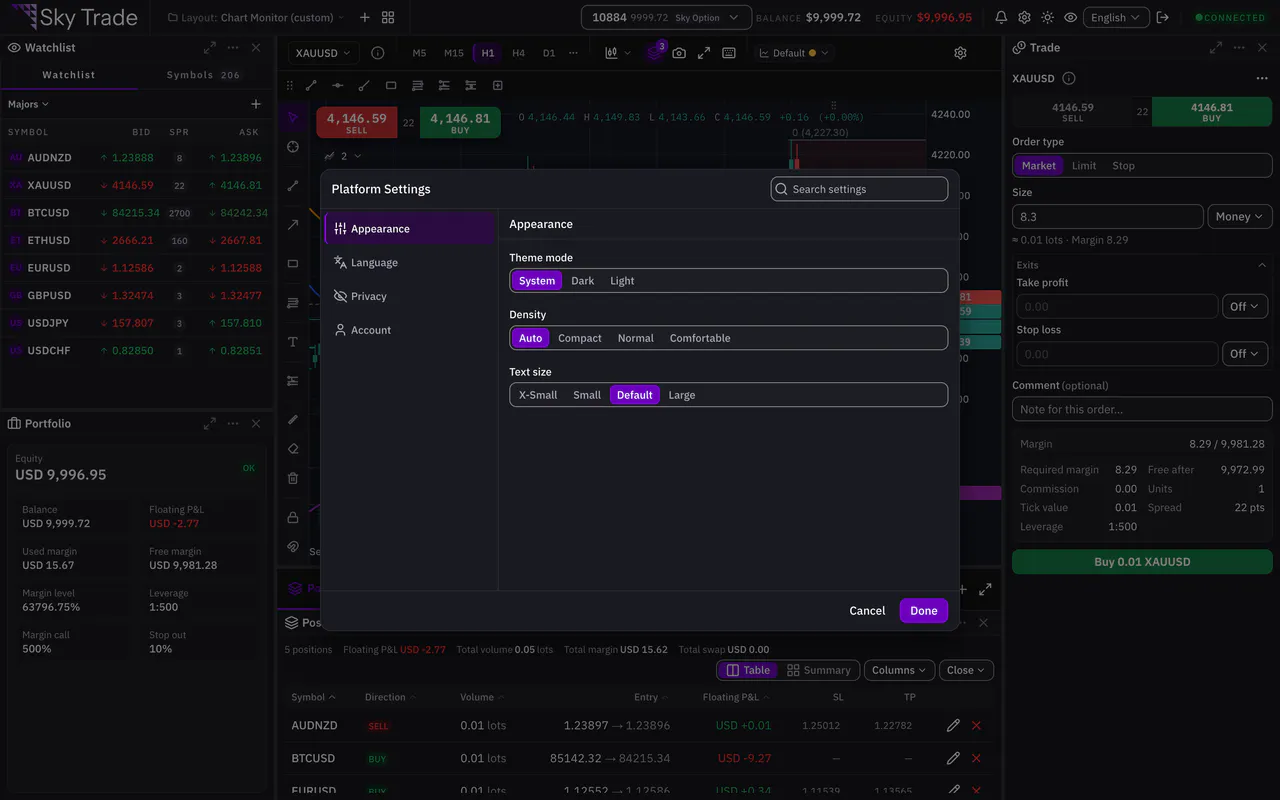
Step 3: Set the density and the text size
Density sets how much fits on the screen: Compact, Normal or Comfortable, or Auto. Text size makes all the text smaller or larger, chart labels included: X-Small, Small, Default or Large.
Step 4: Switch between English and Arabic
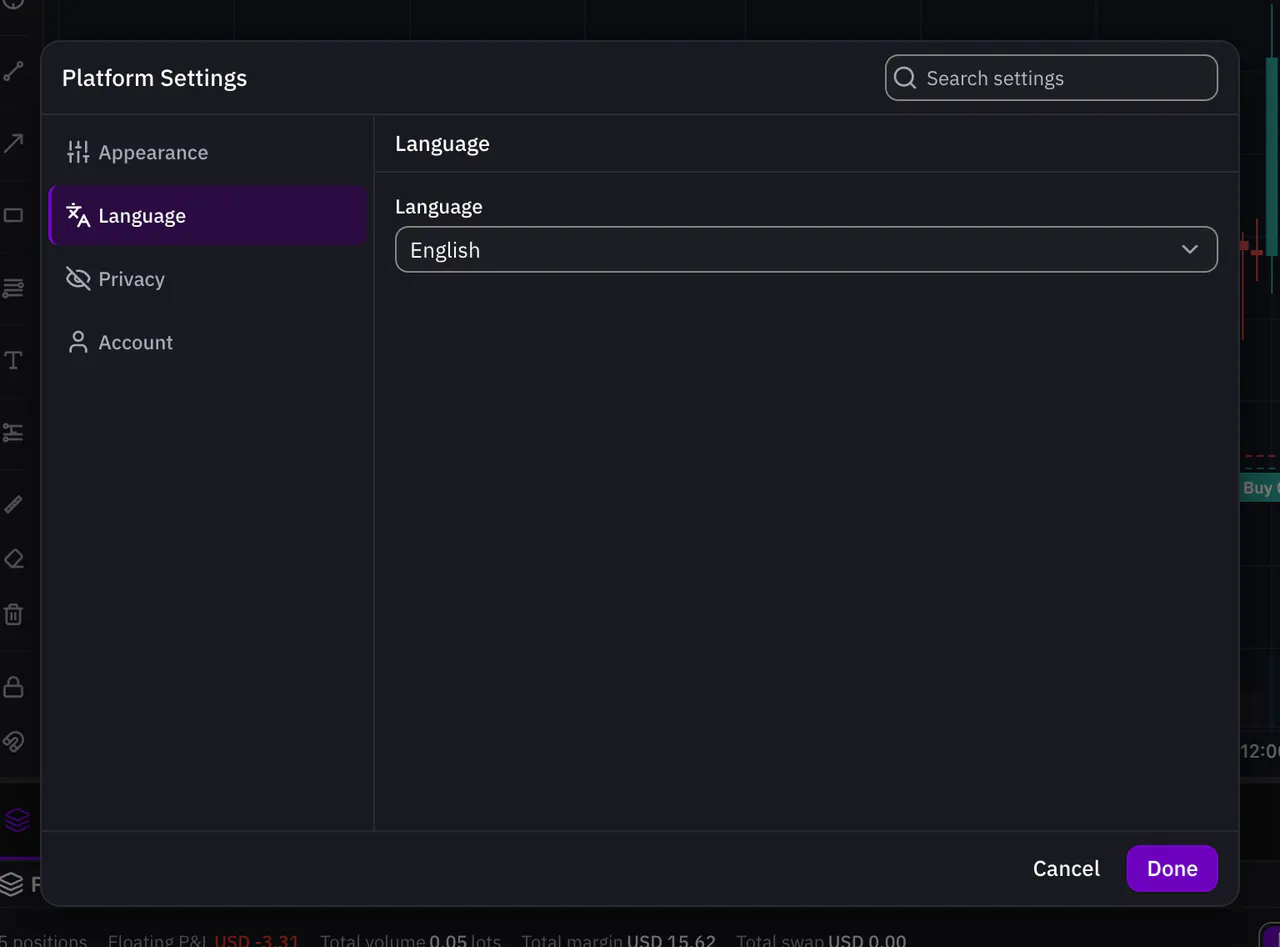
Under Language, choose English or العربية, or use the language menu in the header. In Arabic the screen layout runs from right to left, while prices keep Western digits, so a number always looks the same.
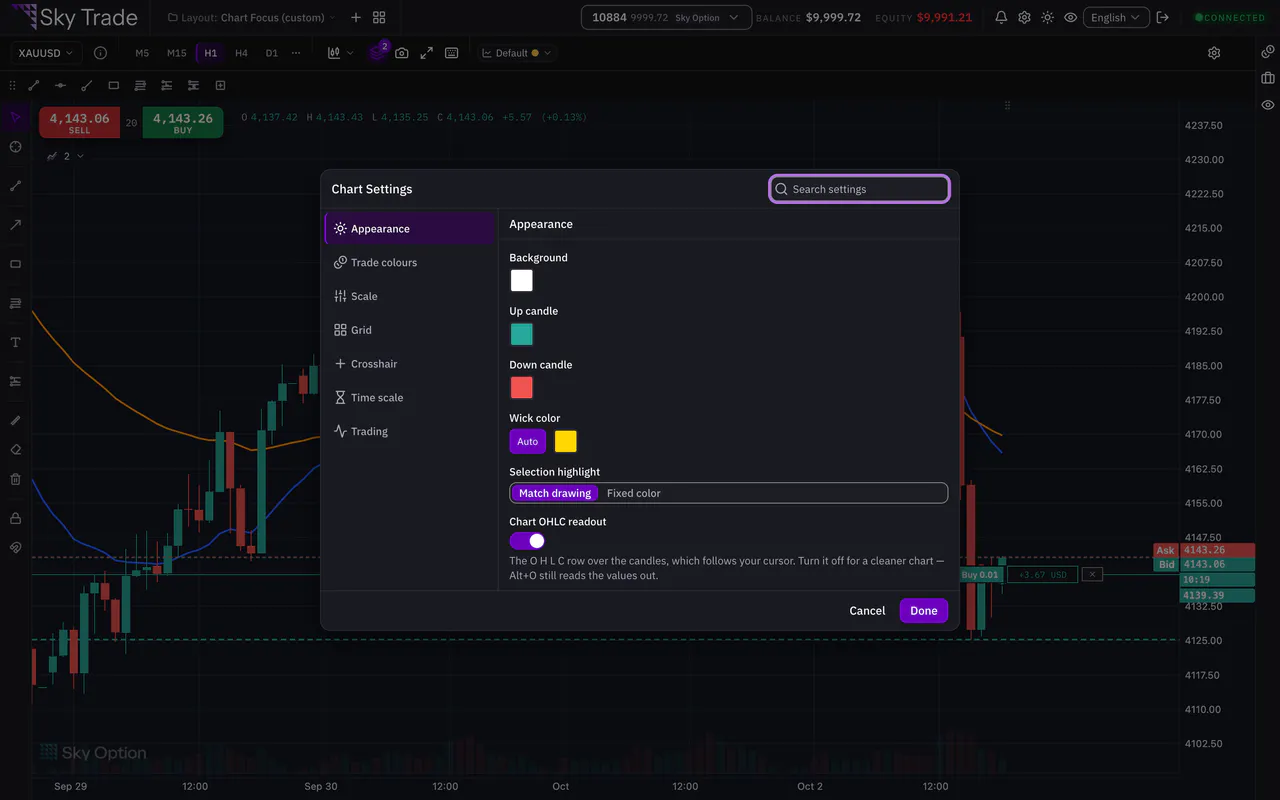
Step 5: Colour your chart in Chart Settings
Right-click the chart and choose Settings… to open Chart Settings. Change the background, the up and down candles, the grid and the crosshair. Each change shows on the chart at once, and Cancel puts it all back.


That is the whole guide
You have done every step. Pick what to learn next, or try it on the live chart.
Up next
- Beginner
Hide your money with Streamer Mode
Share your screen or stream your trading without showing your account number, your money or your lot sizes.
2 min4 steps - Beginner
A tour of the Sky Trade screen
Learn what each part of the screen is for, from the header to the AI button, so you always know where to look.
4 min7 steps