
Open a free demo account
Get a Sky Trade account with virtual money in a few minutes, then sign in to it from any browser.
- Who it is for
- Anyone who wants to try Sky Trade without risking money.
- Time
- 3 min
- Steps
- 5 steps
Steps in this guide5 steps
Step 1: Open the Sky Trade web app
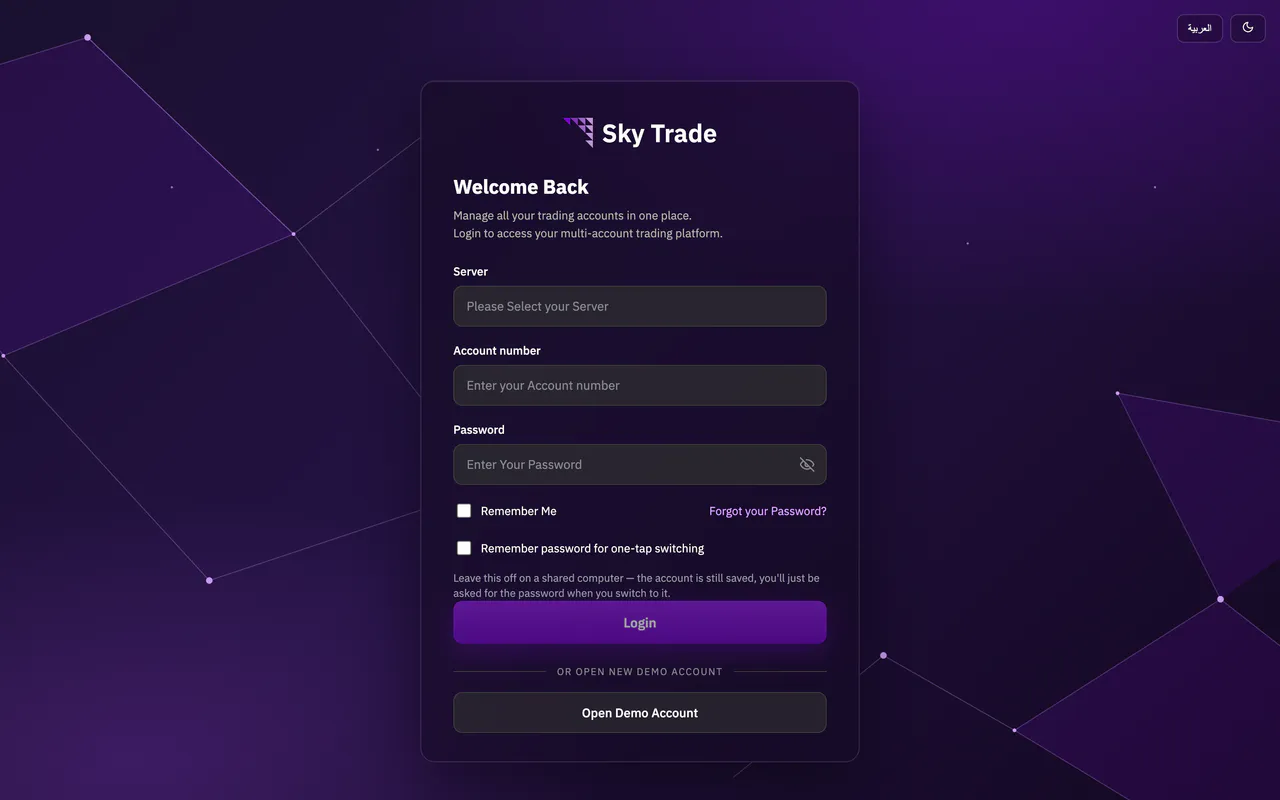
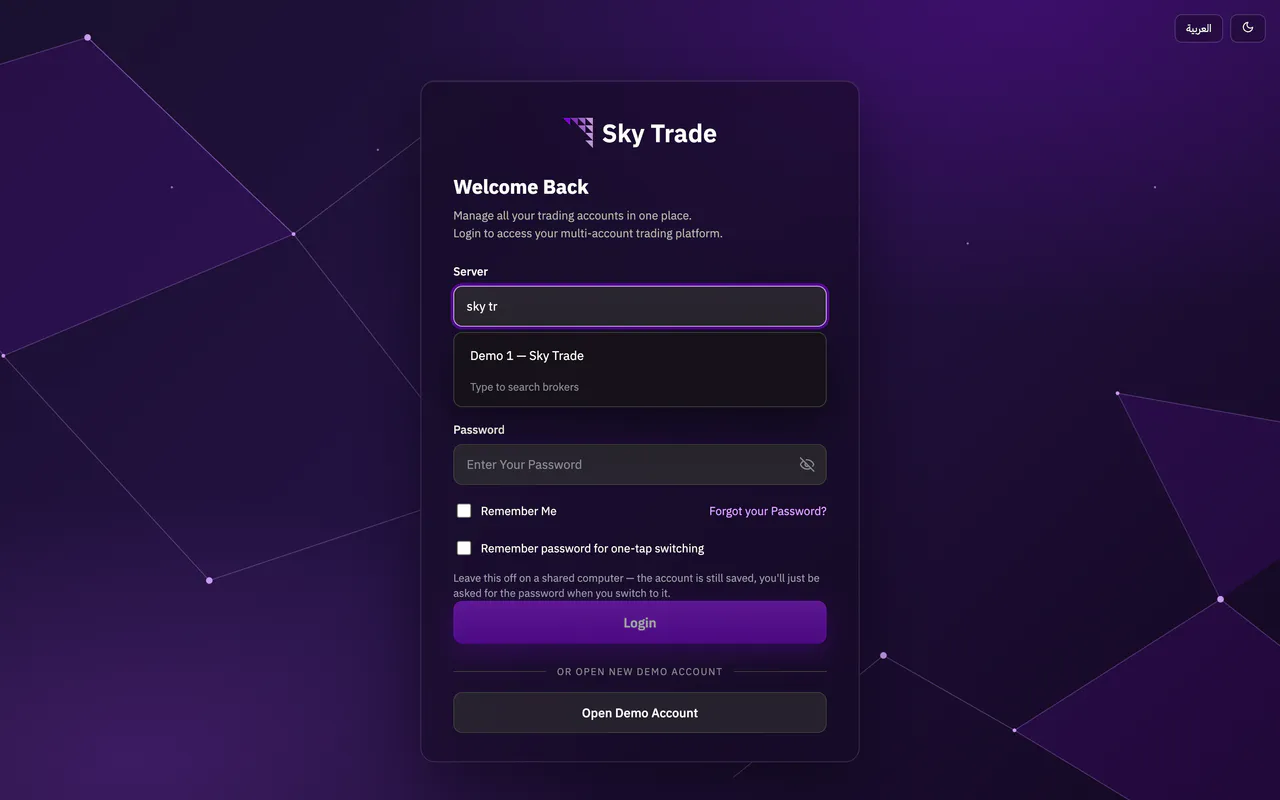
Open the Sky Trade web app in your browser. There is nothing to install. The first page asks you to log in.
Step 2: Press Open Demo Account
Under the login form, press Open Demo Account. A short form opens.
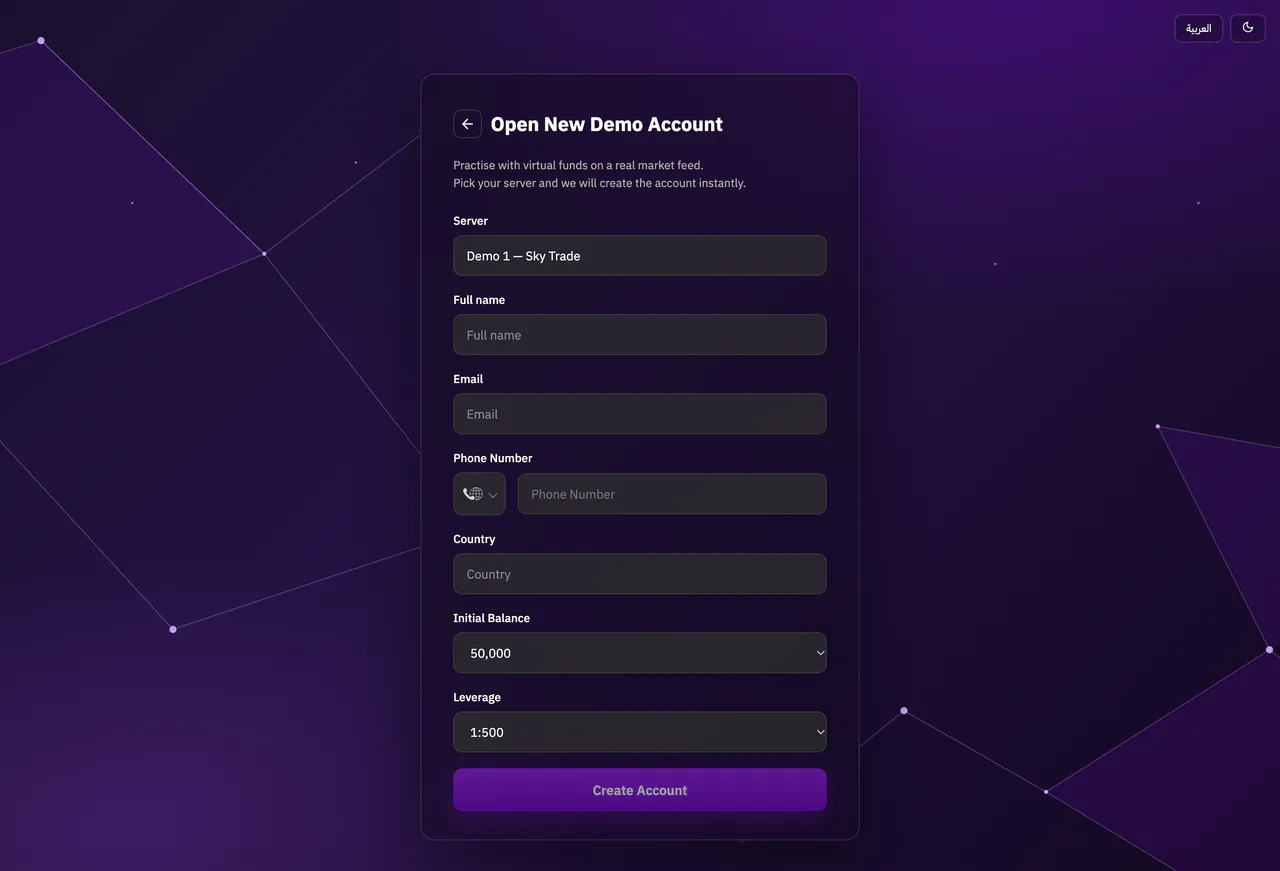
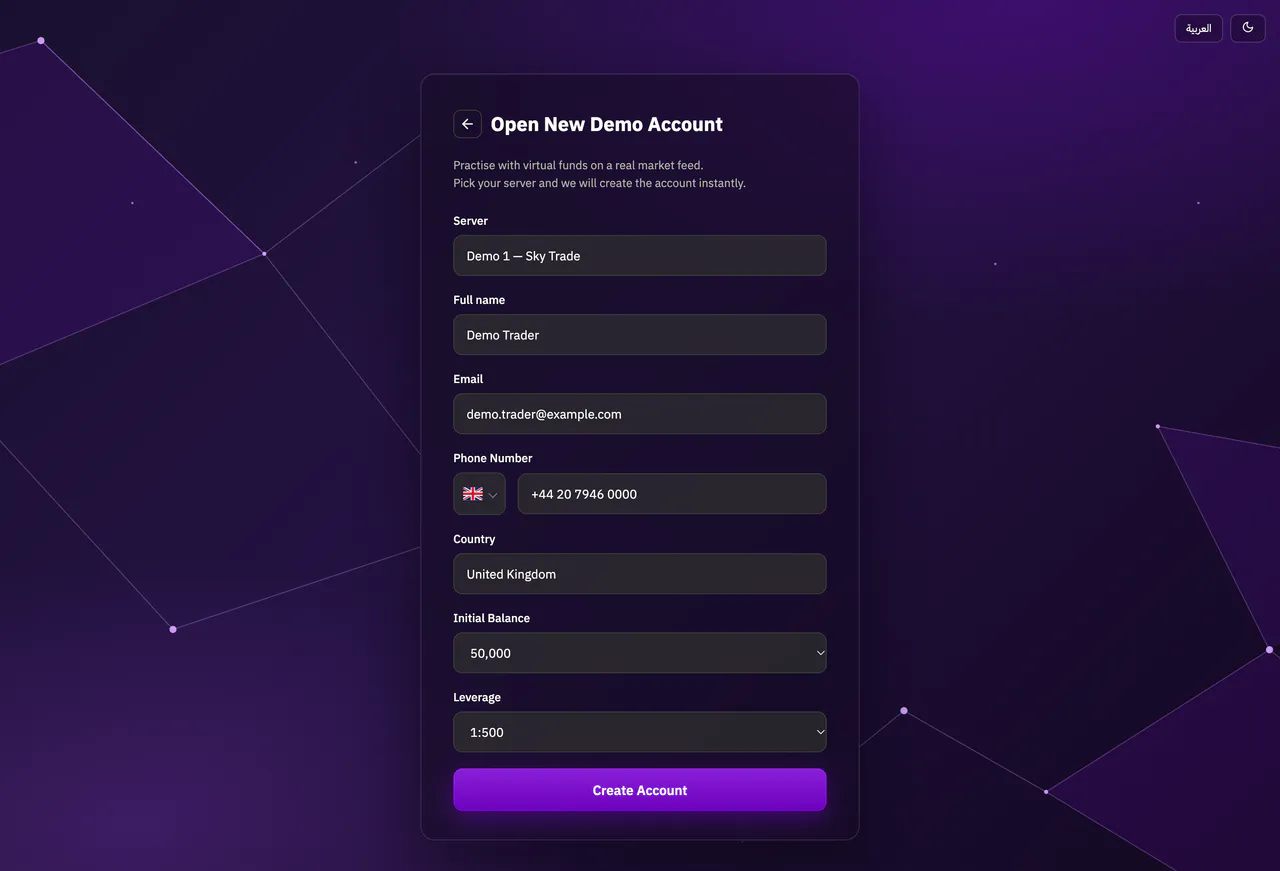
Step 3: Fill in the form and create the account
The Server field already shows the Sky Trade demo server, so you can leave it. Type your full name, email and phone number, and pick your country. Choose an initial balance and a leverage, then press Create Account.
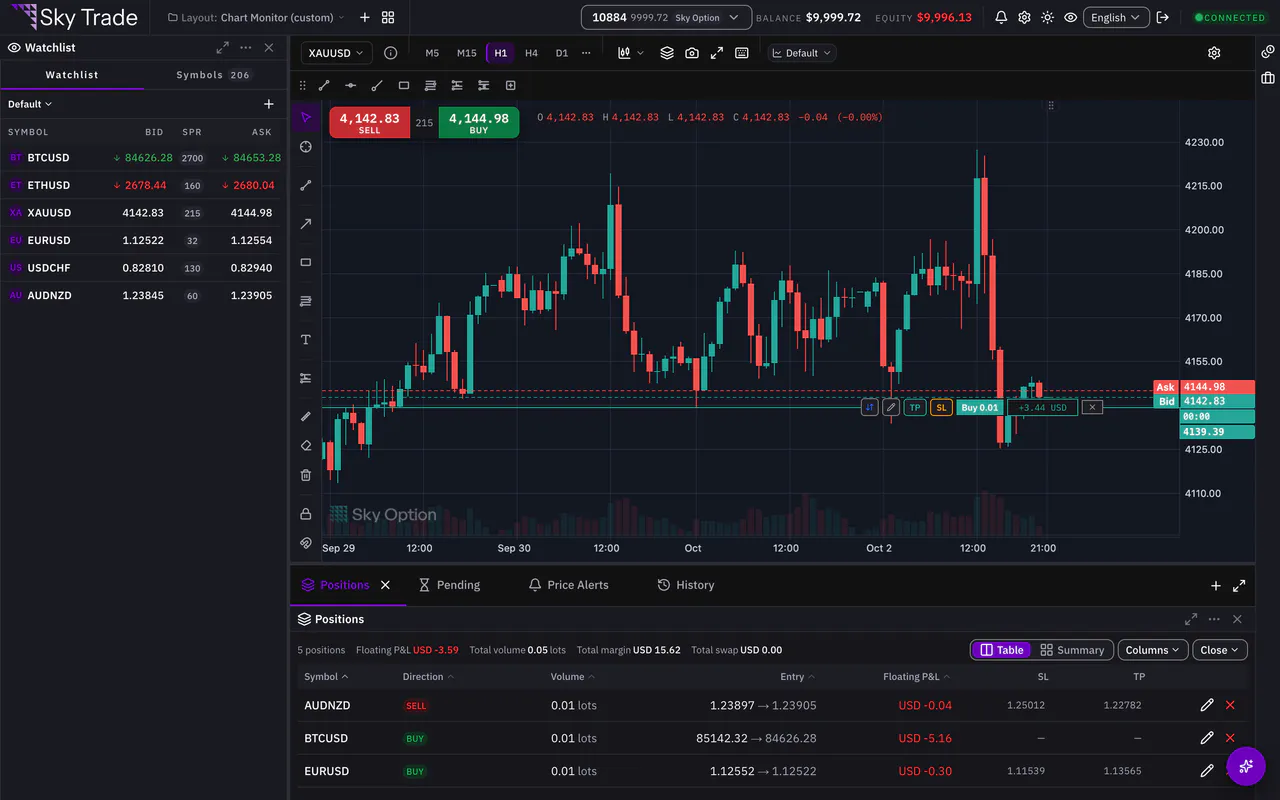
Step 4: Save your details and start trading
Your demo account is ready. The page shows your server, account number and password only this once, so copy them or write them down now. Then press Continue to trading. You are signed in, with your virtual balance in the header.
Step 5: Next time, log in
Open the web app, pick your server from the list (type a few letters to search it), enter your account number and password, and press Login. Tick Remember Me to keep the server and account number on this device. Your password is kept only if you also tick Remember password for one-tap switching.


That is the whole guide
You have done every step. Pick what to learn next, or try it on the live chart.
Up next
- Beginner
A tour of the Sky Trade screen
Learn what each part of the screen is for, from the header to the AI button, so you always know where to look.
4 min7 steps - Beginner
Place your first trade on your demo account
Open a market order from the chart with a take-profit and a stop-loss, follow it on the chart, change it and close it, all on your demo account.
6 min7 steps